

Navigating a diagram
The diagram toolbar, the Interactions tab, zoom and pan, other visuals on the page, expand and collapse, and keyboard access.
The diagram toolbar
The toolbar above the diagram holds Search diagram, zoom out, the zoom level, zoom in, Fit diagram to view and the minimap toggle.
Zoom and pan
- Scroll over the diagram to zoom in and out around the pointer. A trackpad pinch zooms too.
- Drag empty canvas to pan. A drag that starts on a node does not move the diagram.
- Scroll sideways on a trackpad to pan left and right.
- Click or drag in the minimap to move the view to that part of the diagram.
- With Zoom turned off under Interactions → Navigation, scrolling and the zoom buttons no longer zoom. With Pan turned off, dragging and sideways scrolling no longer pan.
The Interactions tab
| Group | Settings |
|---|---|
| Navigation | Zoom, Pan, Fit when data changes, Search, Minimap |
| Power BI interactions | Selection and cross-filtering, Tooltips, Expand and collapse |
| Node Inspector | Node Inspector, Open on node selection, and a toggle for each Inspector section and Focus branch |
| Diagram selector | Shown when the table holds two or more Diagram IDs. See Multiple diagrams in one table. |
| Inspector headings | Your own wording for the four section headings. |
| Inspector fields | Hide or reorder individual fields. |
| View state | Remember pan and zoom between sessions. |
Pan and zoom always hold while the report stays open. With Remember pan and zoom between sessions off, the view returns to its default each time the report is opened; on, readers reopen where the last saved view was left.
Other visuals on the page
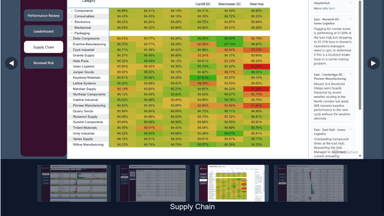
A selection made in another visual is reflected in the diagram, and filtering from another visual rebuilds the diagram from the rows that remain. Cross-highlighting is not supported, because Power BI does not send highlight data to a visual that reads a table. What clicking a node does is covered in Selecting a node.
Expand and collapse
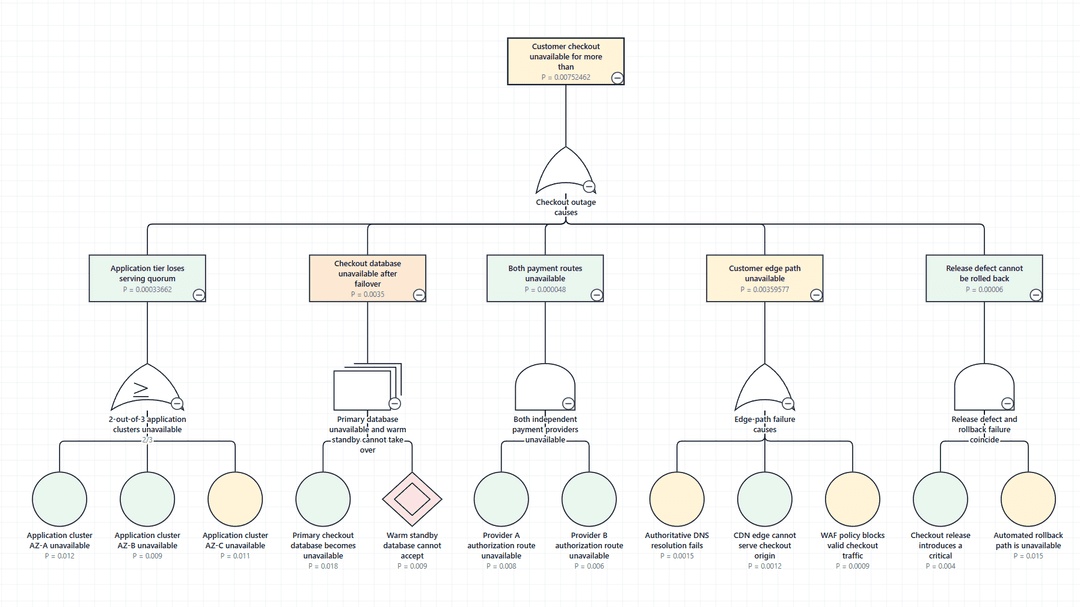
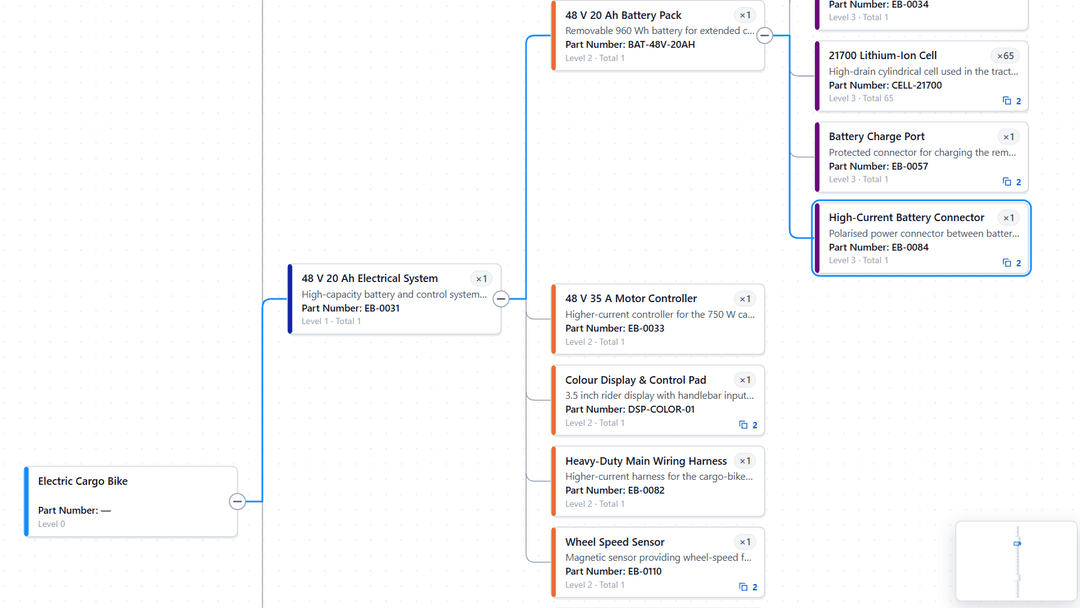
The collapse button on a node, Collapse branch, hides the nodes it leads to, and Expand branch shows them again. Double-clicking a node does the same. A node that another expanded path still reaches stays visible.
Keyboard
| Key | Action |
|---|---|
| Tab | Moves focus into the diagram. |
| Arrow keys | Move to the nearest node in that direction. |
| Enter or Space | Selects the focused node. |
| Alt + = | Expands the focused node. |
| Alt + - | Collapses the focused node. |
| Enter in Search diagram | Moves to the next match. Shift + Enter moves to the previous match. |
| Escape in Search diagram | Clears the search. |
Each node has an accessible name made from its label, type and values.