
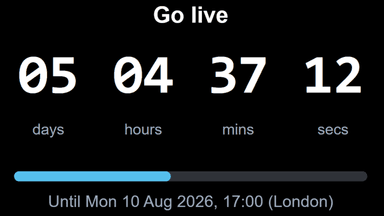
Live Clock GaugeAnimated Clock for Power BI
How it works
- 1
Purchase & unlock
After checkout, the Copy Spec button on this page becomes active.
- 2
Install Ataytis Vega Studio
In Power BI Desktop, open Get more visuals, search for Ataytis Vega Studio, and add it. It is free, and you only do this once.
- 3
Add it to the canvas
Drag the visual onto your report page and drop any field into it to switch it on. Click Edit in the visual toolbar to open the editor.
- 4
Paste the spec
Copy the JSON from this page, paste it over the contents of the Spec editor, and press Ctrl+Enter. The visual renders straight away.
- 5
Customise (optional)
Edit the signal variables near the top of the spec to adjust colors, sizes, and stroke widths to match your report theme.
See it in action
Features
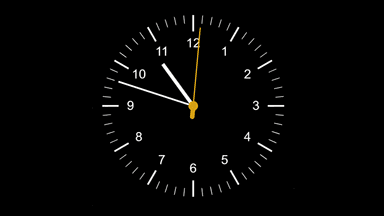
A Real Clock, Not a Refreshed Timestamp
The hands move continuously while the report is open, driven by the clock of the machine reading it. There is no dataset behind it and no scheduled refresh to wait for — the time is right the moment the page loads and stays right for as long as anyone is looking at it.