
Get and install the visual
Install Ataytis Assurance from Microsoft Marketplace, and how the Microsoft licence behaves in Power BI Desktop and the Power BI Service.
Install from Microsoft Marketplace
Open the visual gallery
In Power BI Desktop, select the three dots in the Visualizations pane and choose Get more visuals.
Search for Ataytis Assurance
Microsoft Marketplace opens inside Power BI. Search for Ataytis Assurance and open the listing.
Add the visual
Select Add. The visual appears at the end of the Visualizations pane.
Save the report
The visual is stored in the report file, so anyone who opens the report has the visual without installing anything themselves.
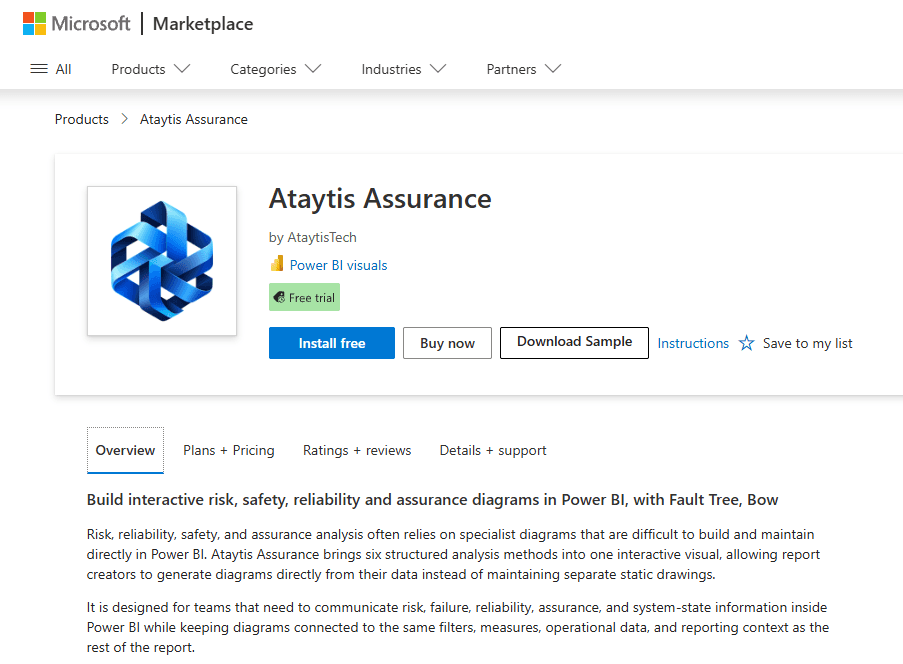
The same listing is on the Microsoft Marketplace website, where Plans + Pricing shows the per-user plans.
Licensing
Ataytis Assurance is a paid visual with a 30-day free trial. Licensing is handled by Microsoft through the Power BI license manager: there is no AtaytisTech checkout, licence key or activation step. Building and using it in Power BI Desktop needs no licence. In the Power BI Service, every person who opens or interacts with a report containing the visual needs one, and the price per user falls as the number of users rises.
| Where | With a licence | Without a licence |
|---|---|---|
| Power BI Desktop | Full use. | Full use, with no watermark. |
| Power BI Service | Full use. | Does not render. Power BI shows its own licence notification in place of the visual. |
| Power BI Service, entitlement still being checked | — | Shows "Checking the Power BI license entitlement." |
| Power BI Service, entitlement cannot be read | — | Treated as not licensed. |