
Advanced editor
Conditional formatting
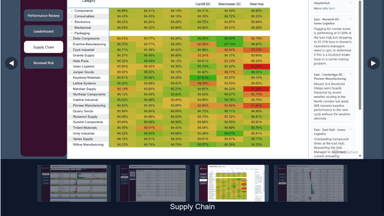
Build rules that change colours, add data bars, place icons — including your own SVGs — and turn values into links.
Opening the editor
Conditional formatting rules are defined in the advanced editor, reached from the bottom of the Values card. Rules are stored with the visual, so they travel with the report.
What a rule can change
| Target | Effect |
|---|---|
| Background color | Fills the cell, either as a graded scale between a minimum and maximum or by discrete rule. |
| Font color | Recolours the value itself, which is often less heavy-handed than a filled cell. |
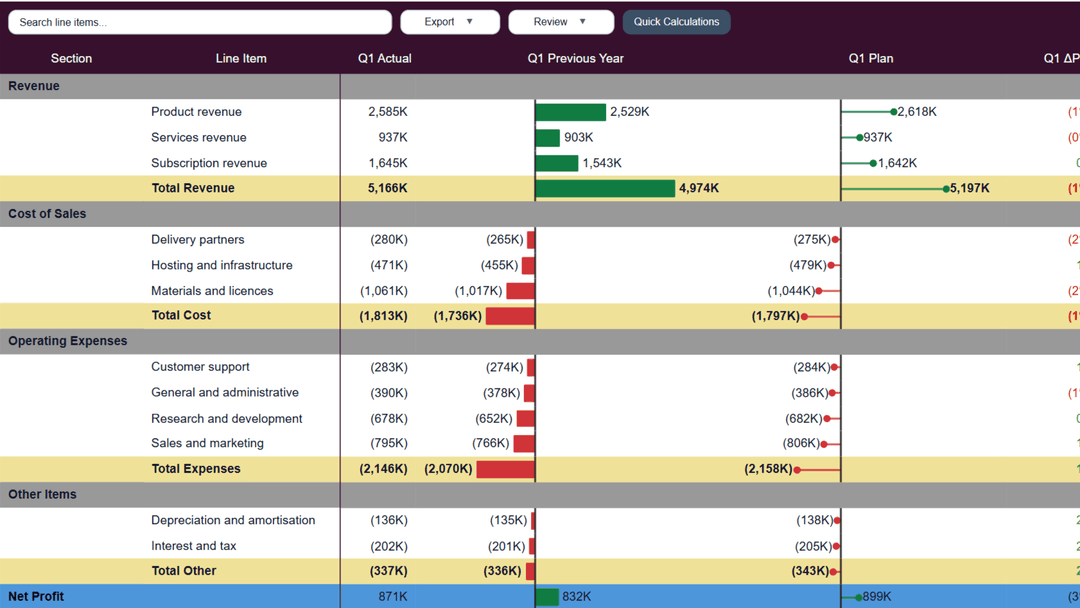
| Data bars | Draws a proportional bar behind the value. |
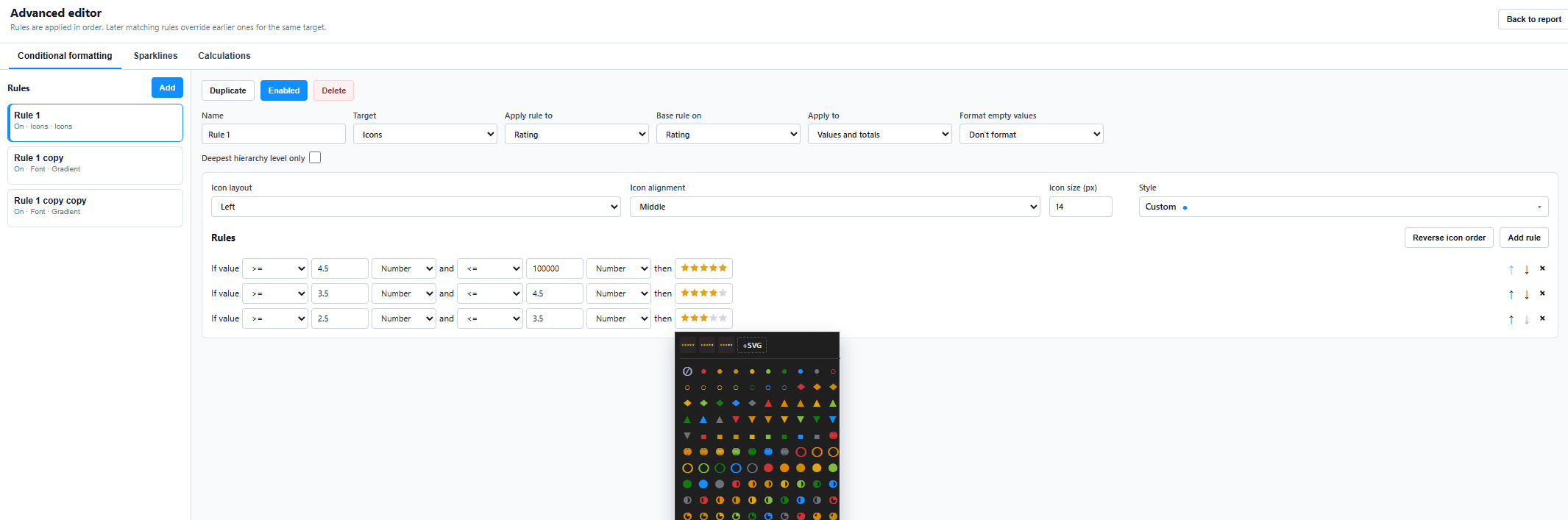
| Icons | Places an icon in the cell according to the rule. |
| Web URL | Turns the cell into a link. |
Your own icons
Icon rules are not limited to a built-in set. You can upload your own SVG — up to 10KB — and use it as the icon a rule applies. That matters when a report has to use a specific status set, a corporate mark, or symbols an audience already recognises.