
Tree and table views
The hierarchy tree and the table, switching between them, the toolbar, opening and closing branches, the path bar, moving around the tree, and the keyboard.
Switching between tree and table
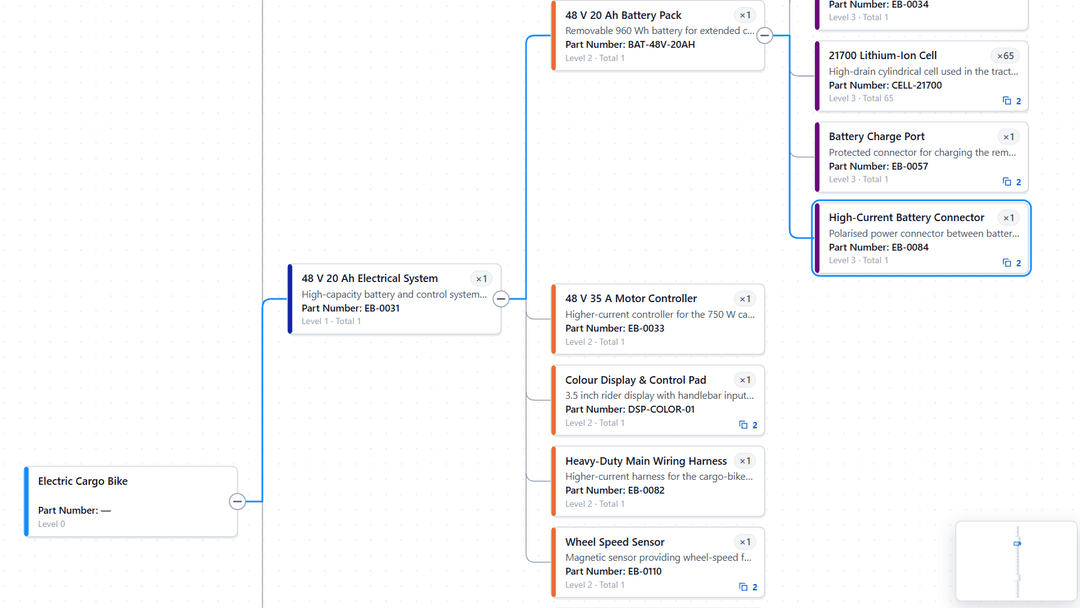
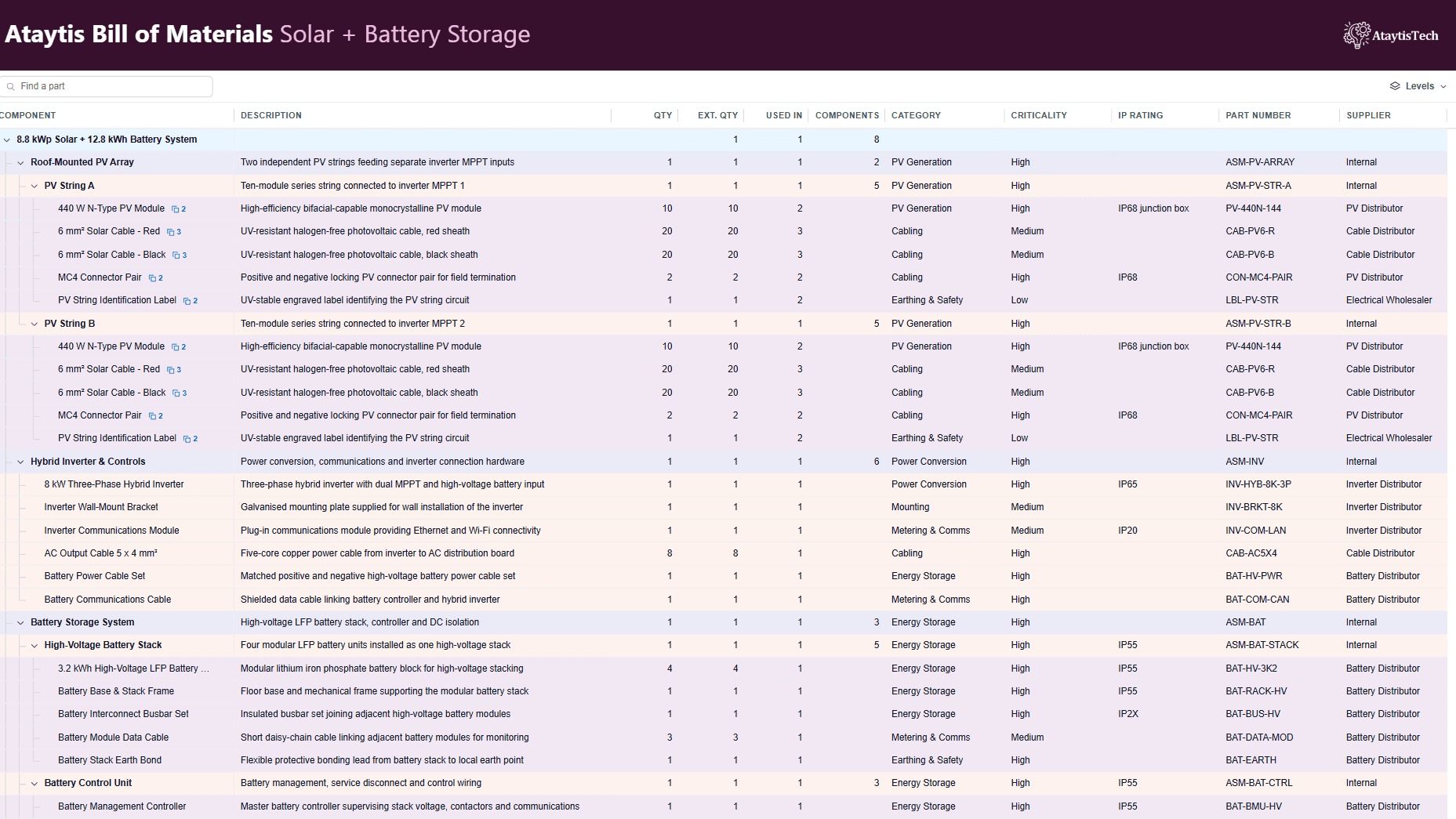
The author chooses the visual in the editor: Hierarchy tree, Table or Tree + table. With both, readers switch from the Tree and Table buttons on the toolbar, from an arrow that appears on the right edge of the visual, or either, as General → Switching views → Switch with says. The two views keep the same branches open.
The toolbar
| Control | What it does |
|---|---|
| Tree and Table | Switch view, when both are offered. |
| Choose product | The product picker. Shows one top-level product, or all of them. |
| Find a part | Search by part number, description or any detail column. |
| Item count | The number of items and lines, such as 12 items · 13 lines. |
| Data notes | What the visual found in the data. Off by default. |
| Levels | Opens the BOM to a chosen number of levels. |
| Zoom out, Zoom in, Fit to view | The tree only. |
| Details panel | Opens and closes the details panel. Off by default. |
Each control can be turned off under General → Toolbar, and Show toolbar hides the whole bar.
Opening and closing branches
- Select the expand button on a card or row. In the tree, double-clicking a card does the same.
- Use Levels on the toolbar: Collapse all, one to six levels, or fewer when the BOM is not that deep, or Expand all, which shows how many rows that would be.
- Use Expand all below or Collapse all below from the row menu, or Expand all and Collapse in the details panel, for one branch.
How far the BOM opens when the report loads is set under General → Opening → Levels open. Automatic, the default, opens everything when that is 500 rows or fewer, and otherwise one level, or nothing when there are more than 60 top-level products.
The path bar
When a position below the top level is selected, the path bar above the BOM shows the route to it from the top-level product, such as EB-100 › WHEEL-R › MOTOR-250 › BEARING-6001. Select any step to go to it. Turn it off under General → Toolbar → Path bar.
Moving around the tree
- Scroll to move up and down, and hold Shift to move sideways.
- Hold Ctrl and scroll to zoom in and out around the pointer.
- Drag the background to pan.
- Use Zoom out, Zoom in and Fit to view on the toolbar.
- On a large tree, drag the viewport in the minimap. Tree → Navigation → Minimap is Auto by default, which shows it once the tree is more than a quarter larger than the visual in either direction.
Reading the table
The first column holds the part numbers, indented by level, and stays in place while you scroll across. Assemblies are in bold. Select a column heading to sort the components under each parent by that column, when Readers can sort is on. The row actions button on each row opens the row menu.
Keyboard
| Key | Action |
|---|---|
| Up and Down | Move to the previous or next position. |
| Page Up and Page Down | Move a page at a time. |
| Home and End | Move to the first or last position. |
| Right | Open the branch, or move to its first component when it is open. |
| Left | Close the branch, or move to the parent when it is closed. |
| Enter or Space | Select the position, the same as a click. Hold Ctrl to add it to the selection. |
| * | Open everything below the position. |
| Escape | Step back: dismiss a notice, stop highlighting, clear the selection and close the details panel, leave where-used, then clear the focus. |