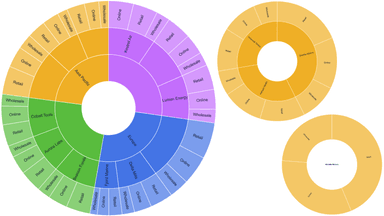
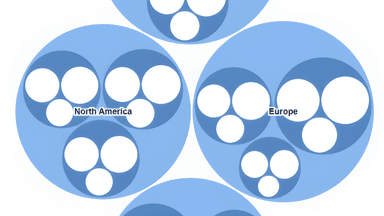
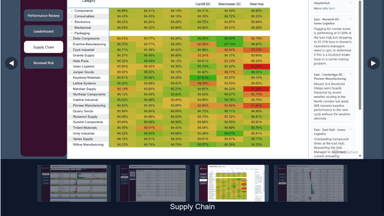
Highlight, where-used and focus
Highlighting every occurrence of a part, searching, where-used from any part, focusing on an assembly, choosing a product, and filtering the report to a branch.
Highlight every occurrence
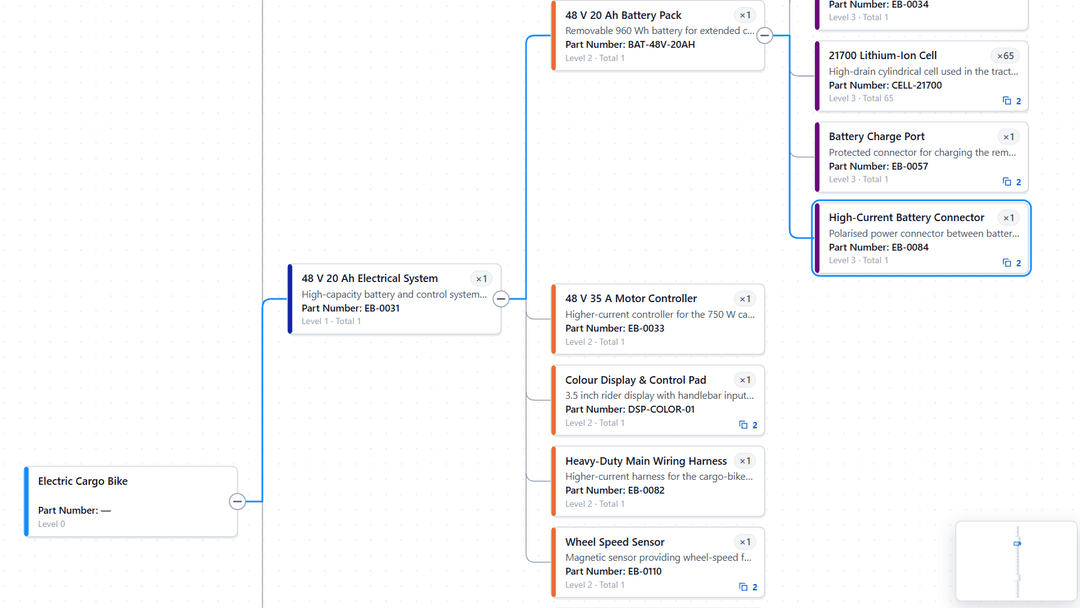
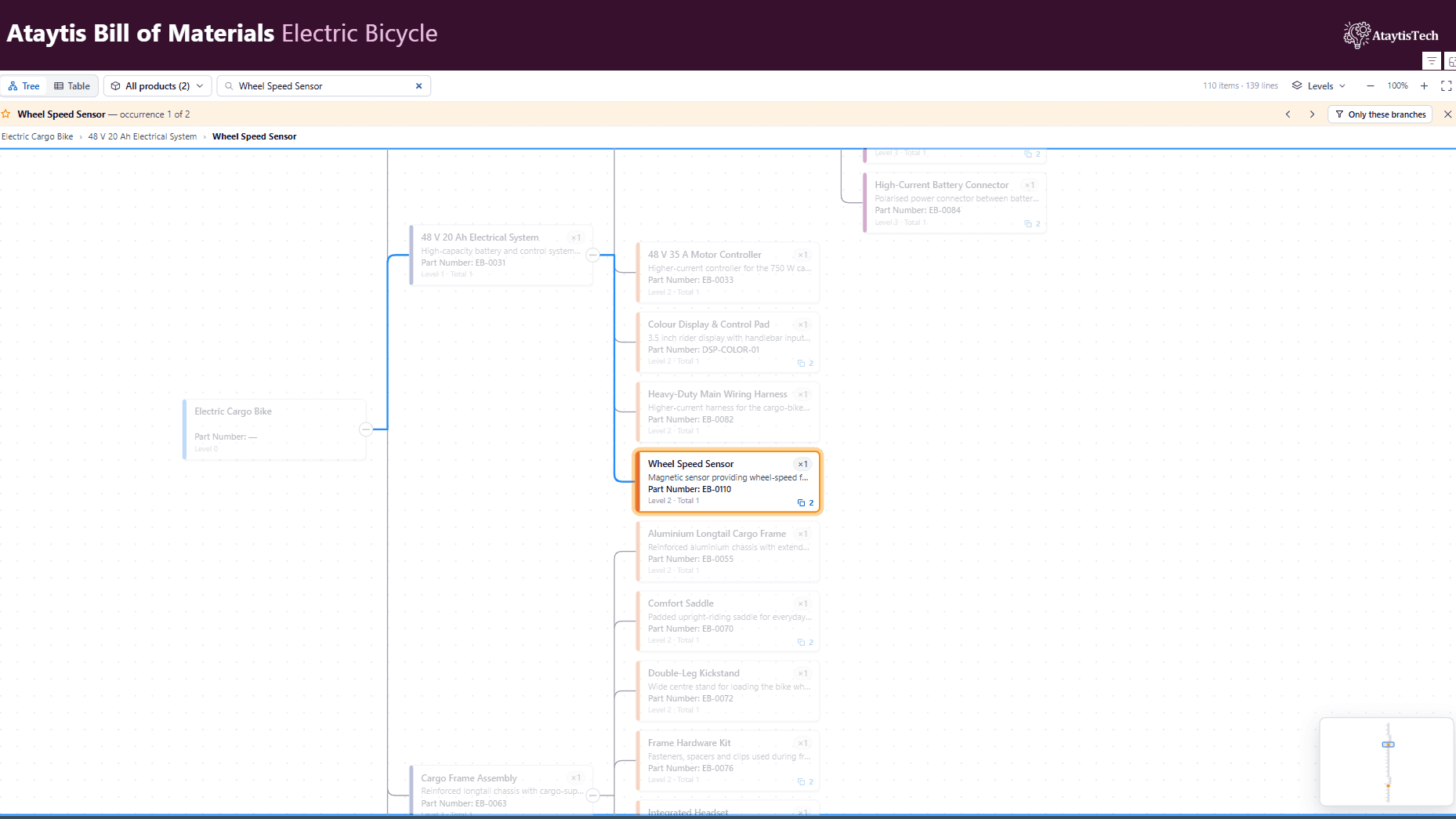
Choose Highlight all in the details panel, Highlight all occurrences in the row menu, or pick a part from search. Every position the part occupies is lit, the rest fades, and the branches holding each one are opened as you reach them. The bar above the BOM reads, for example, SPOKE-14 — occurrence 1 of 2.
- Previous occurrence and Next occurrence step through them.
- Only these branches hides everything that does not lead to the part.
- Stop highlighting ends it, and so does Escape.
To keep the rest of the BOM at full strength while highlighting, turn off General → Interactions → Fade others while highlighting.
Search
Type into Find a part. It finds parts, not positions, by part number, description or any detail column, with exact matches first. Press Enter to take the first result, or Down to move into the list. Picking a result highlights every occurrence of that part. Escape clears the search.
Where used
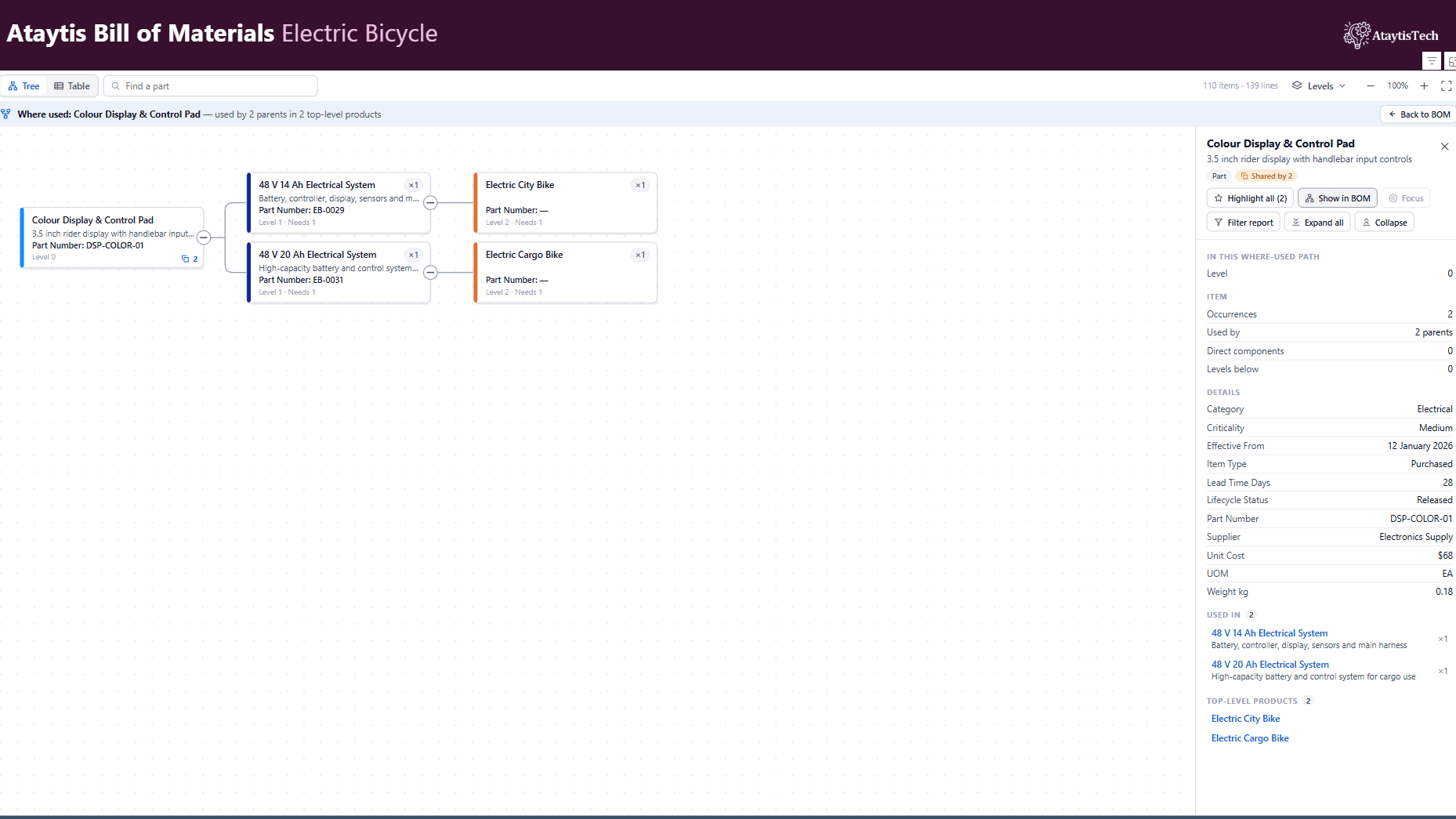
Choose Where used in the details panel or the row menu to turn the BOM upside down from a part. It then shows every assembly that uses the part and every top-level product above them, and the bar reads, for example, Where used: RIM-275 — used by 2 parents in 1 top-level product.
Quantities multiply upward, as Needs in the table. Show in BOM returns to the BOM with the part highlighted, and Back to BOM returns to where you were.
Focus on an assembly
Choose Focus in the details panel, or Focus on this item in the row menu, to show one assembly and everything beneath it on its own. The bar reads Focused on and the part number, with Show everything to return. Focus is offered on assemblies only.
Choosing a product
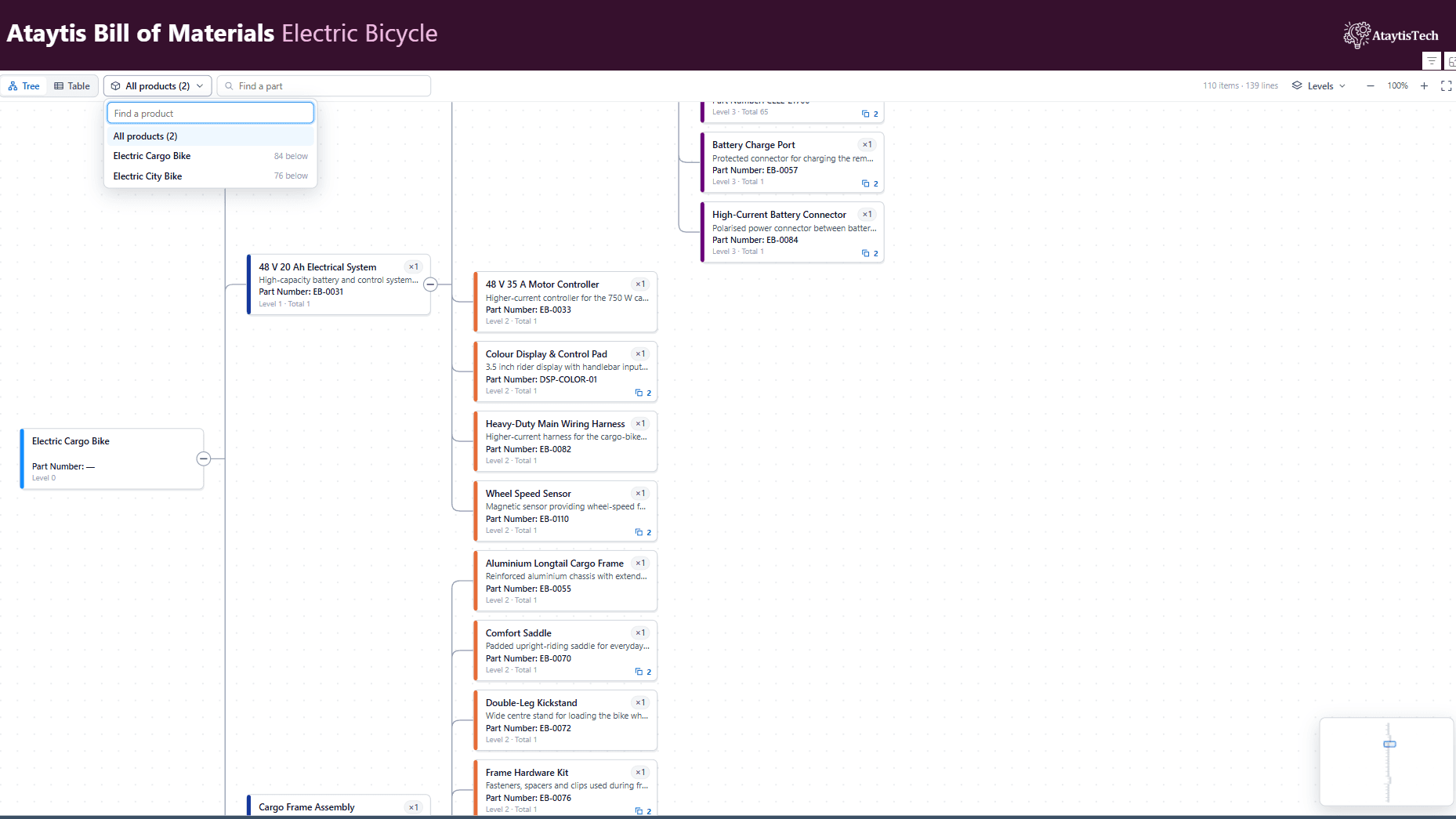
With several top-level products, Choose product on the toolbar shows one of them. The list can be searched by part number or description, shows how many positions are below each product, and starts with All products and their number.
Filter the report to a branch
Choose Filter report in the details panel, or Filter report to this branch in the row menu, to select the rows of that position and everything beneath it. The rest of the report page filters to them, and the bar reads, for example, Filtering the report to 5 rows in WHEEL-R. Up to 5,000 rows are selected.
This needs General → Interactions → Filter the report on click. With it off, the bar says Report filtering is turned off for this visual.