
Field wells and summarising
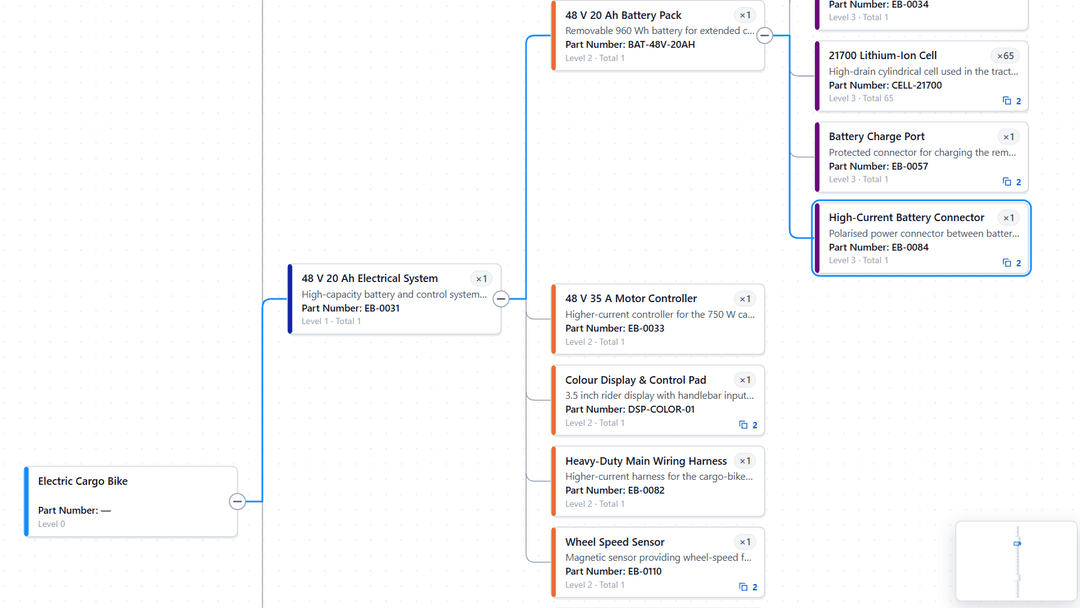
The five Ataytis BOM field wells, what each accepts, why Quantity and number columns should be set to Don't summarize, how Power BI treats identical rows, and measures.
The five wells
| Well | Accepts | Use it for |
|---|---|---|
| Parent | One column | The assembly or product. Required. |
| Child | One column | The part or sub-assembly the parent uses. Required. |
| Quantity | One column or measure | How many of the child one parent needs. It turns on extended quantities. |
| Details | Up to 60 columns or measures | Anything about the child: description, position, unit, status, supplier, cost, dates or links. Shown in the table, the details panel and tooltips, on tree cards when you choose, and usable by formatting rules. |
| Tooltips | Up to 50 columns or measures | Detail shown on hover and in the details panel only. Nothing here becomes a table column. |
The wells decide what each column is, not its name: a column is the parent because it is in Parent. Only the description and the sort order are found by name, among the Details fields, as Preparing BOM data describes.
Why summarising breaks a BOM
Power BI does not send a visual the table as it is stored. It sends one row for each different combination of the columns that are not summarised, and works out each summarised column across the rows it combined. A number column dropped into Quantity, Details or Tooltips is summed by default.
| Quantity is | Two rows WHEEL-R, SPOKE-14, 16 and WHEEL-R, SPOKE-14, 16 arrive as |
|---|---|
| Sum of Quantity | One row with 32. The visual cannot tell it was two. |
| Don't summarize, with nothing else to tell the rows apart | One row with 16. Power BI sends each combination once, so identical rows become one. |
| Don't summarize, with a Position column of 10 and 20 in Details | Two rows of 16, which the visual joins as Repeated parent and child says: 32 with Add quantities, the default. |
The last row is the only one where the BOM is right and the visual can tell you what happened. Set Quantity to Don't summarize, and keep the column that makes each line of your BOM different, such as a position, find number or line number, in Details.
Recognising a summarised column
In the well, a summarised field carries the summary in its name, such as Sum of Quantity, Average of Unit Cost or Count of Supplier. A field shown by its plain column name is not summarised.
Fixing it in the well
Open the field's menu
Select the arrow beside the field in Quantity, Details or Tooltips.
Choose Don't summarize
The field goes back to its column name, such as Quantity instead of Sum of Quantity. Its settings in the editor are kept.
Stopping it in every report
Select the column in the Data pane, and on the Column tools ribbon set Summarization to Don't summarize. Power BI then adds it to any visual without summarising it.
Measures
A measure always summarises, and Power BI works it out once for each row it sends. A measure in Quantity or Details should therefore return the value for one BOM line, such as the quantity of one parent and child, and not a total across lines.