Preparing BOM data
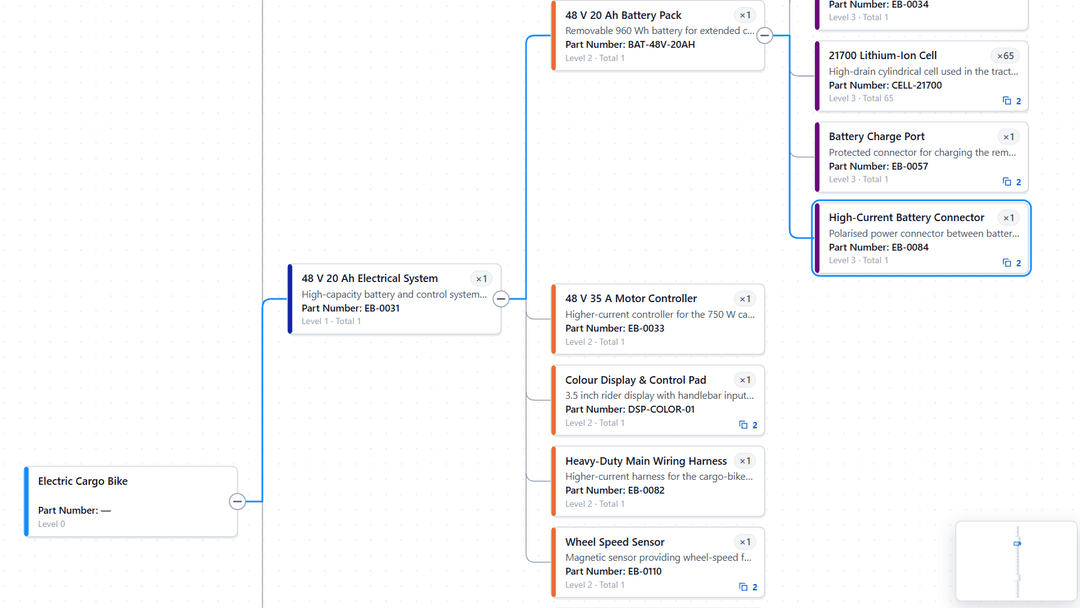
The table Ataytis BOM needs: one row per parent and child, the five field wells, top-level products, part numbers, descriptions, component order and repeated rows.
One row per parent and child
Each row says that one parent uses one child. A child used by three parents has three rows. The depth of the structure comes from the rows themselves, so a table exported from an ERP or PLM system usually works as it is.
| Parent | Child | Quantity | Description | Position |
|---|---|---|---|---|
| WHEEL-R | RIM-275 | 1 | 27.5 inch rim | 10 |
| WHEEL-R | SPOKE-14 | 32 | Spoke | 20 |
| WHEEL-R | MOTOR-250 | 1 | 250 W hub motor | 30 |
Field wells
| Well | Takes | What goes in it |
|---|---|---|
| Parent | One column. Required. | The assembly or product. |
| Child | One column. Required. | The part or sub-assembly the parent uses. |
| Quantity | One column or measure. | How many of the child one parent needs. Optional; it turns on extended quantities. |
| Details | Up to 60 fields. | Anything describing the child, such as description, position, status, supplier or cost. Shown in the table, the details panel and tooltips, and available to formatting rules. |
| Tooltips | Up to 50 fields. | Extra detail shown on hover, and in the details panel. |
Column names do not matter for these wells: a column is the parent because it is in Parent.
Top-level products
An item that no row lists as a child is a top-level product. A row with a blank Parent also declares its Child a top-level product, even if the same item is used elsewhere, and that row is the one used to describe it. Use a blank-parent row to give a product a description, or to show a sub-assembly as a product in its own right.
Part numbers
The values in Parent and Child are the part numbers, and the same value in both columns is the same item. Spaces at the start and end are ignored. Part numbers that differ only by case or spacing are kept as separate items and reported as a data note; make them identical in Power Query if they are the same part.
Description and position, from Details
Two Details columns have jobs of their own. The description is shown beside each part number rather than as one more column, and a position column orders the components under each parent. Both are recognised by name. Case, spaces and punctuation are ignored, so Item_Description and item description are the same name.
| Role | Recognised names |
|---|---|
| Description | Description, Item Description, Part Description, Component Description, Child Description, Material Description, Desc, Short Description, Item Name, Part Name, Component Name, Child Name, Material Name, Name, Title |
| Sort order | Position, Pos, Position Number, Pos No, BOM Position, Item Position, Find Number, Find No, Sequence, Seq, Sort Order, Line Number, Line No, BOM Line |
The description is recognised in a column, not a measure. To choose another column, or none, open the editor and use Data → From Details → Description or Sort order. Each lists Automatic, None and every Details field.
The order of components
With a sort order column, the components under each parent follow it: numbers first, in numeric order, then text, with blanks last. Without one, Data → Rows → Child order decides.
| Child order | Components are listed |
|---|---|
| Part number | By part number, reading numbers inside it as numbers, so BOLT-2 comes before BOLT-10. This is the default. |
| Data order | In the order their rows arrive from Power BI. |
| Largest quantity first | By quantity, largest first. |
When a parent and child repeat
Rows with the same Parent and Child are one relationship. Data → Rows → Repeated parent and child decides what happens to their quantities:
| Setting | Use it when |
|---|---|
| Add quantities | Each row is a separate position, such as the same screw used at two places in one assembly. This is the default. |
| Use the first row | The rows repeat one quantity, for example because the table was joined to something with several rows per part. |
Either way, the visual reports the repeated relationships as a data note, with examples.
Links to drawings and documents
Give a column of addresses the Web URL data category in Power BI and add it to Details or Tooltips. In the details panel each address beginning http:// or https:// becomes a link that opens through Power BI.