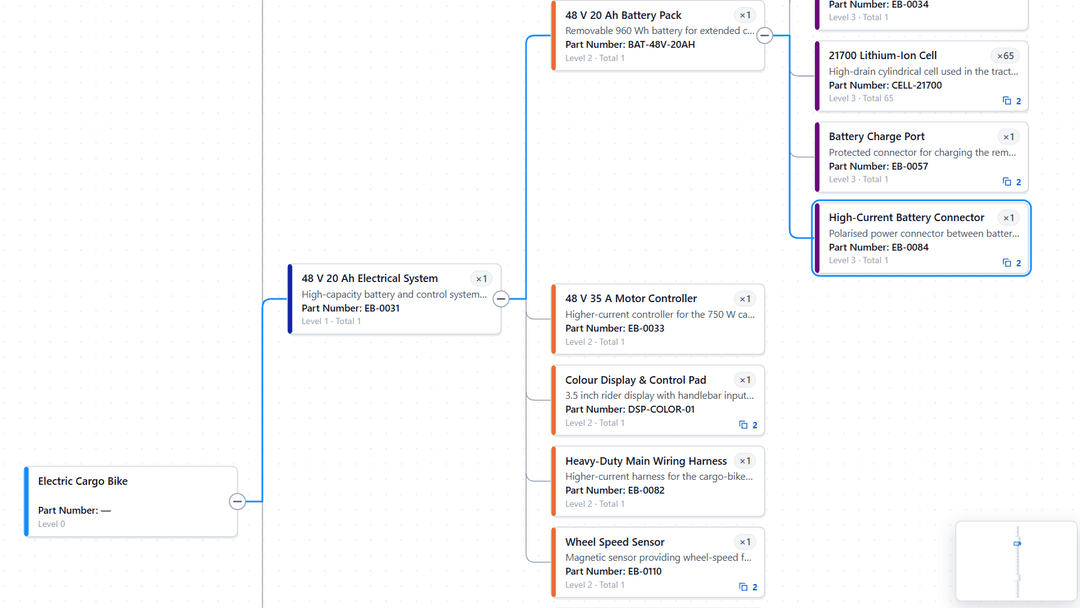
Explore multi-level, multi-parent bills of materials from Parent–Child data with the Ataytis BOM Power BI visual.
Ataytis BOM
The advanced editor
Opening the Ataytis BOM editor, choosing the visual, the tabs and the live preview, the Data tab, and resetting to defaults.
Opening the editor
Select the visual on the report, open More options (…) and choose Edit. The settings are not in the Power BI format pane, which only says Select Edit on the visual to configure views, formatting rules and interactions. Each change is saved in the report as it is made.
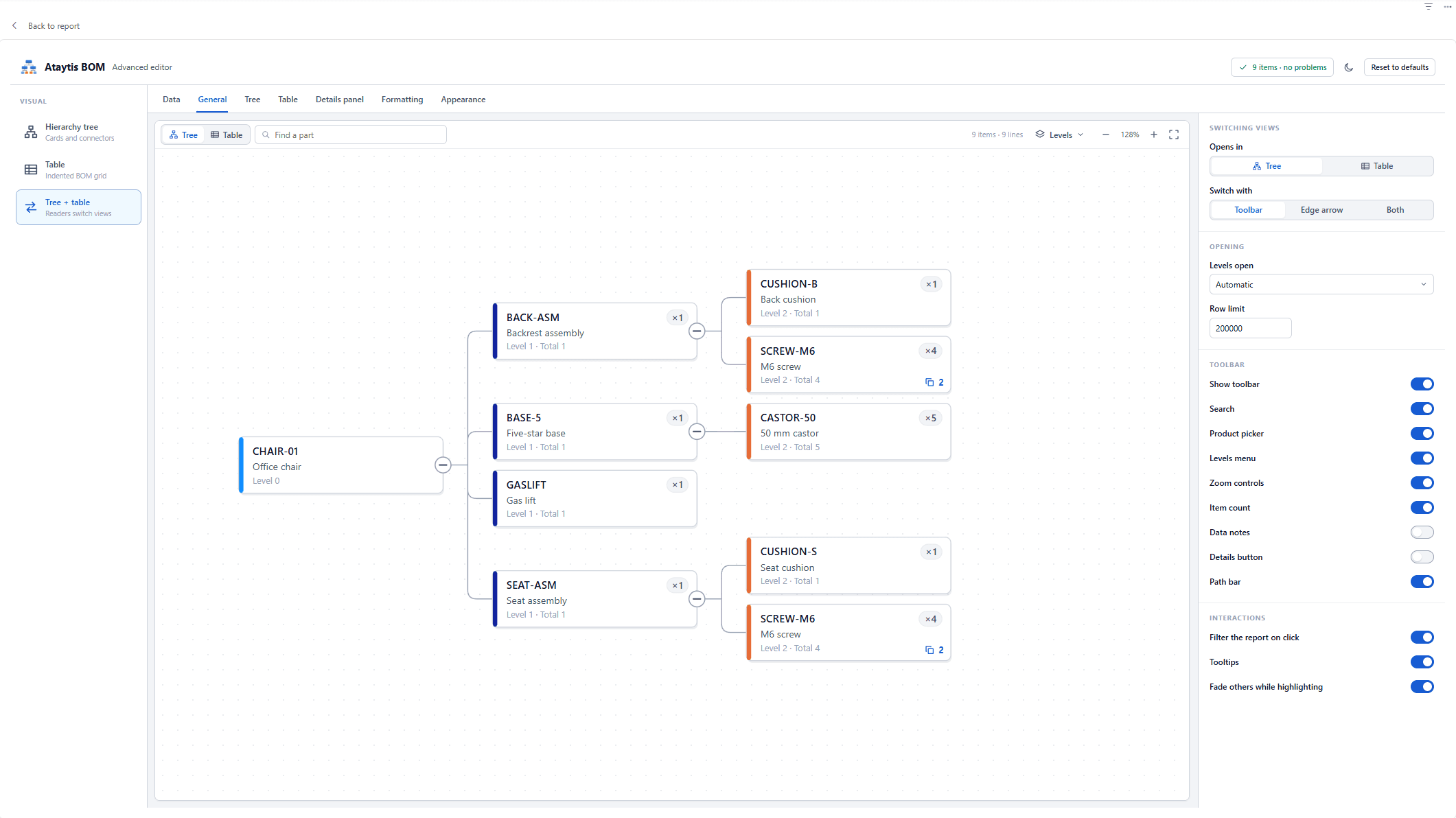
The editor on the General tab. Tree + table is selected under Visual, the preview is the report's own BOM, and the header reads 9 items · no problems.
Layout
Area
What it holds
Visual
On the left: Hierarchy tree (cards and connectors), Table (an indented BOM grid) or Tree + table (readers switch views).
Tabs
Data, General, Tree, Table, Details panel, Formatting and Appearance. Tree and Table appear only when that view is offered, and Formatting shows how many rules there are.
Preview
The report's own BOM, drawn from your data, so it behaves exactly as readers will see it.
Settings panel
The settings for the selected tab. Drag its edge to resize it, or use the arrow keys on the edge, with Shift for larger steps.
Header controls
Control
What it does
Back to report
At the top left. Closes the editor and returns to the report.
Data notes status
The number of items, and no problems or the number of notes. Opens the Data tab.
Switch editor theme
Switches the editor between light and dark.
Reset to defaults
Restores every setting. Select it again within four seconds, when it reads Click again to reset, to confirm. The editor's own theme and width are kept.
The Data tab
Group
Contains
Field wells
Which columns are in each well, with Parent and Child marked Required.
From Details
Description and Sort order, each Automatic, None or a chosen Details field. Shown when there are Details fields.
Structure
Rows, items, relationships, top-level products, assemblies, shared parts and the deepest level.
Rows
Repeated parent and child, and Child order.
Data notes
Everything the visual found in the table, with examples.
When the preview is empty
Message
Meaning
Add Parent and Child to see the BOM here.
One or both required wells are empty.
No rows are available. Review the report filters.
Filters leave no rows.
No children were found in the bound rows.
Every row has a blank Child.
A licence for Ataytis BOM is required to show the BOM in the Power BI service.
In the Power BI Service, the preview needs a licence too.