Build your first BOM
Type a small electric bicycle BOM into Power BI, add it to Ataytis BOM, and try the tree, the table, the details panel, search and where-used.
This walk-through types a small bill of materials straight into Power BI, so it needs no data source. It takes a few minutes, and everything it shows works the same on your own data.
Enter the table
Open Enter data
In Power BI Desktop, select Enter data on the Home ribbon.
Type the table
Name the columns Parent, Child, Quantity and Description, and fill in the rows below. Leave Parent blank on the first row.
Load it
Name the table Bike and select Load.
| Parent | Child | Quantity | Description |
|---|---|---|---|
| EB-100 | Electric bicycle | ||
| EB-100 | FRAME-AL | 1 | Aluminium frame |
| EB-100 | WHEEL-F | 1 | Front wheel |
| EB-100 | WHEEL-R | 1 | Rear wheel with hub motor |
| EB-100 | BRAKE-D | 2 | Disc brake |
| EB-100 | BATT-500 | 1 | 500 Wh battery pack |
| WHEEL-F | RIM-275 | 1 | 27.5 inch rim |
| WHEEL-F | SPOKE-14 | 32 | Spoke |
| WHEEL-R | RIM-275 | 1 | 27.5 inch rim |
| WHEEL-R | SPOKE-14 | 32 | Spoke |
| WHEEL-R | MOTOR-250 | 1 | 250 W hub motor |
| MOTOR-250 | BEARING-6001 | 2 | Bearing 6001 |
| BRAKE-D | BOLT-M5 | 6 | M5 bolt |
| BATT-500 | CELL-21700 | 40 | 21700 lithium cell |
The first row has no parent. That declares EB-100 a top-level product and gives it its description. Every other row says which part a parent uses and how many.
Add the visual
Add Ataytis BOM to the page
Select it in the Visualizations pane and size it to fill most of the page.
Fill the wells
Drag Parent to Parent, Child to Child, Quantity to Quantity and Description to Details.
Keep quantities as they are
Open the menu on Quantity in the well and choose Don't summarize, so Power BI passes every row through unchanged.
The Description column is recognised by its name and shown beside each part number. Nothing else needs setting: the visual opens with every branch showing, because the BOM is small.
What you see
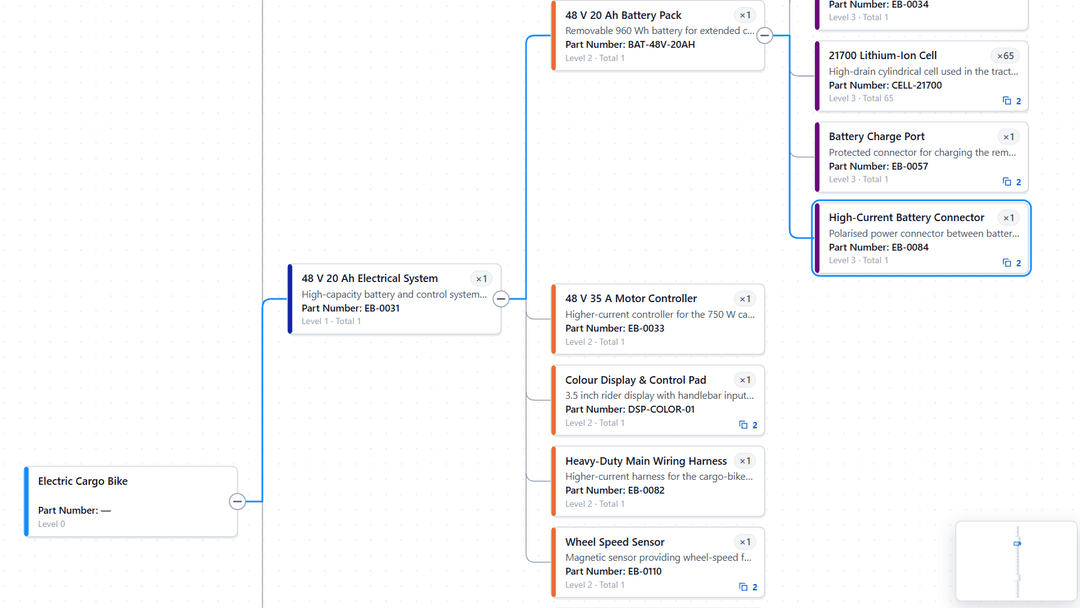
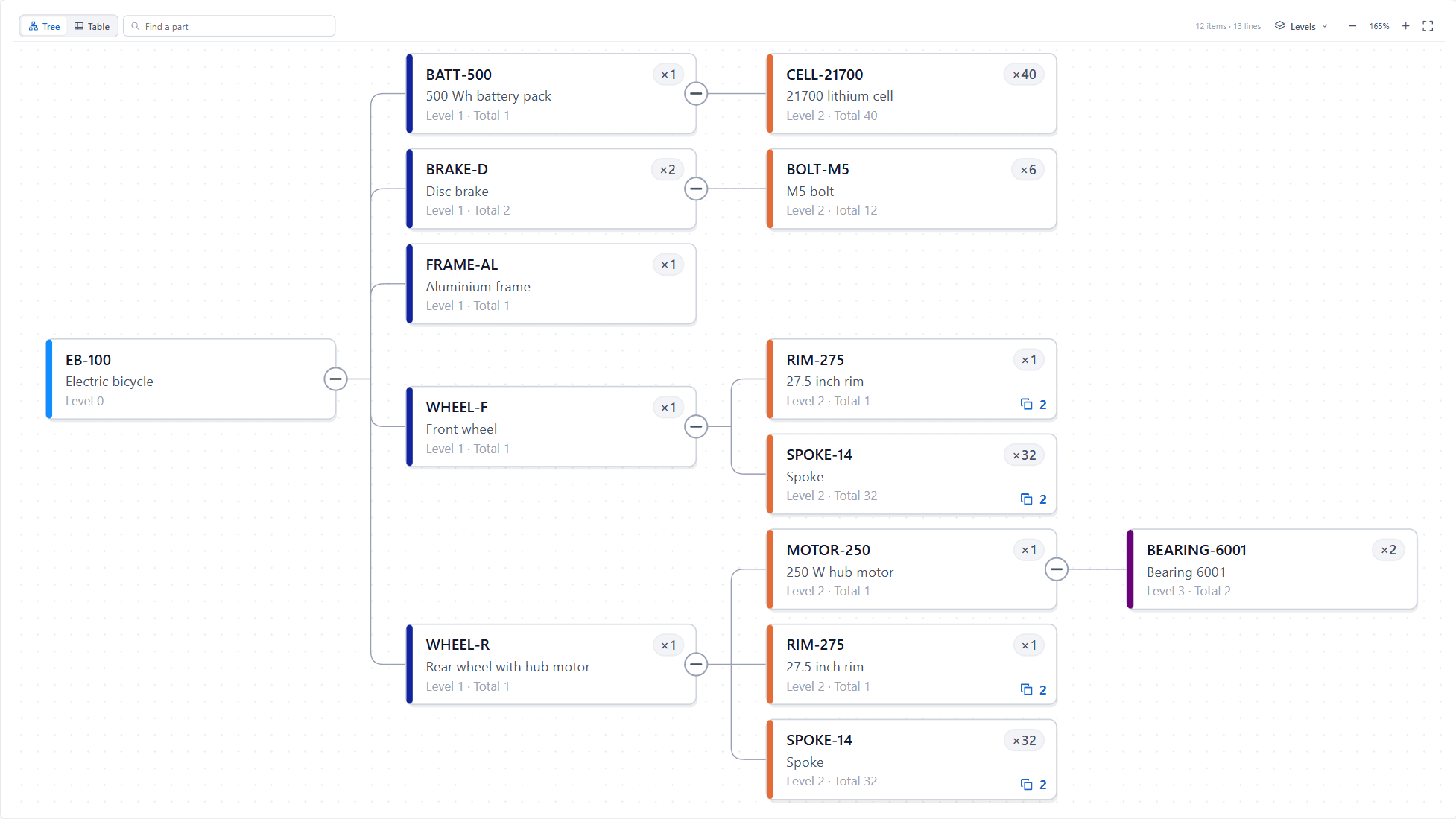
EB-100 is level 0 and its parts are level 1. The deepest part, BEARING-6001, is level 3. RIM-275 and SPOKE-14 are used by both wheels, so they are drawn in both and carry a shared badge with the number 2. Each position shows the quantity one parent needs and the extended quantity for the whole path from EB-100:
| Part | Level | Quantity per | Extended quantity | Used in |
|---|---|---|---|---|
| BRAKE-D | 1 | 2 | 2 | 1 place |
| BOLT-M5 | 2 | 6 | 12 | 1 place |
| SPOKE-14, under WHEEL-R | 2 | 32 | 32 | 2 places |
| BEARING-6001 | 3 | 2 | 2 | 1 place |
| CELL-21700 | 2 | 40 | 40 | 1 place |
BOLT-M5 reads 12 because the bicycle has two disc brakes and each brake uses six bolts.
Try the main features
- Select Table on the toolbar to see the same BOM as an indented grid, with the same branches open.
- Click WHEEL-R. The details panel opens with its position, its components and the product that uses it.
- Type SPOKE into Find a part and press Enter. Both spokes are highlighted, and the bar above the BOM reads occurrence 1 of 2.
- In the details panel for RIM-275, choose Where used to see both wheels and EB-100 above it. Choose Back to BOM to return.