
Quantities and extended quantities
How Ataytis BOM reads quantities, multiplies them down each path into extended quantities, handles shared parts and where-used, and treats missing or unreadable values.
Quantity per
The Quantity column is how many of the child one parent needs. It is shown as Quantity per in the details panel and tooltips, and in the table under the name of your Quantity column.
Extended quantity
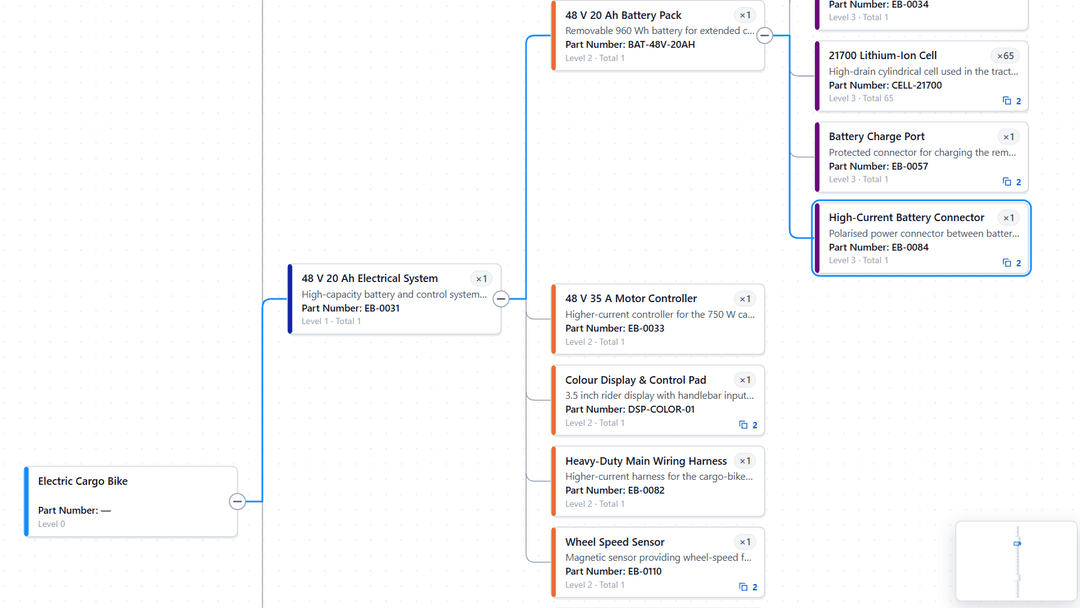
The extended quantity multiplies the quantities along the path from the top-level product. In the electric bicycle from Build your first BOM, the bicycle has two disc brakes and each brake has six M5 bolts:
| Position | Quantity per | Extended quantity |
|---|---|---|
| EB-100 › BRAKE-D | 2 | 2 |
| EB-100 › BRAKE-D › BOLT-M5 | 6 | 12 |
The table shows it as Ext. qty, and the details panel and tooltips as Extended quantity. On a tree card it is part of Level and total, under the description.
A part used in several places has one position in each, and each position has the extended quantity for its own path. SPOKE-14 is in both wheels of the bicycle, so it appears twice, each with 32.
Quantities in where-used
Where used turns the BOM upside down, and quantities multiply upward instead. A position shows how many of the part it uses, as Uses, and how many of the part it needs along the path, as Needs in the table and as the part number followed by needed in the details panel.
Missing and unreadable quantities
| The Quantity cell holds | The visual |
|---|---|
| A number | Uses it. |
| Text that is plainly a number, such as 4 or 1,200 | Reads it as a number, ignoring thousands separators. A quantity column imported as text works. |
| Nothing | Treats the quantity as unknown, and reports the relationship as having no quantity. |
| Anything else | Treats the quantity as unknown, and reports that it could not be read as a number. |
An unknown quantity leaves every extended quantity beneath it blank, rather than guessed. A zero is a real quantity and is used as one.
Decimal places
Quantities use the format of the Quantity column in the model. To fix the number of decimal places instead, set Appearance → Numbers → Quantity decimals to 0, 1, 2, 3 or 4. As in the model is the default.