Conditional formatting
Colouring cards, rows and table columns in Ataytis BOM: quick rules, conditions, colour by value and colour scales, the built-in BOM fields, rule order and the legend.
Quick rules
The Formatting tab starts with quick rules that need no data preparation, because the visual already knows these things about every position. Each one adds an ordinary rule to the list below it, which can then be changed like any other.
| Quick rule | Adds |
|---|---|
| Mark shared parts | An orange status dot on parts shared by two or more parents. |
| Accent assemblies | A blue accent bar on assemblies. |
| Flag circular references | A light red background on positions in a circular reference. |
| Shade by level | An accent bar coloured on a scale from the top level down. |
| Colour by your first text detail | A status dot in a different colour for each value, such as each status or supplier. |
The last one is offered only when Details holds a text column other than the description, and is named after it, such as Colour by Supplier. The description is shown beside the part number rather than as a detail, so a table whose only detail is its description has the first four quick rules.
Three kinds of rule
| Rule | Colours |
|---|---|
| Condition | One colour wherever a comparison holds, such as Status is Obsolete. |
| Colour by value | A colour for each distinct value, taken from the report theme, with any value given a colour of your own. |
| Colour scale | A range between a low and a high colour, over a number. Leave the low or high value blank to take it from the data. |
Adding and arranging rules
Under Rules, the buttons Condition, Colour by value and Colour scale add a rule of that kind to the end of the list. Each rule is a card headed with its number and kind, such as 1. Condition, with a switch to turn it off, arrows to move it up or down, and a button to delete it. The Formatting tab shows the number of rules beside its name.
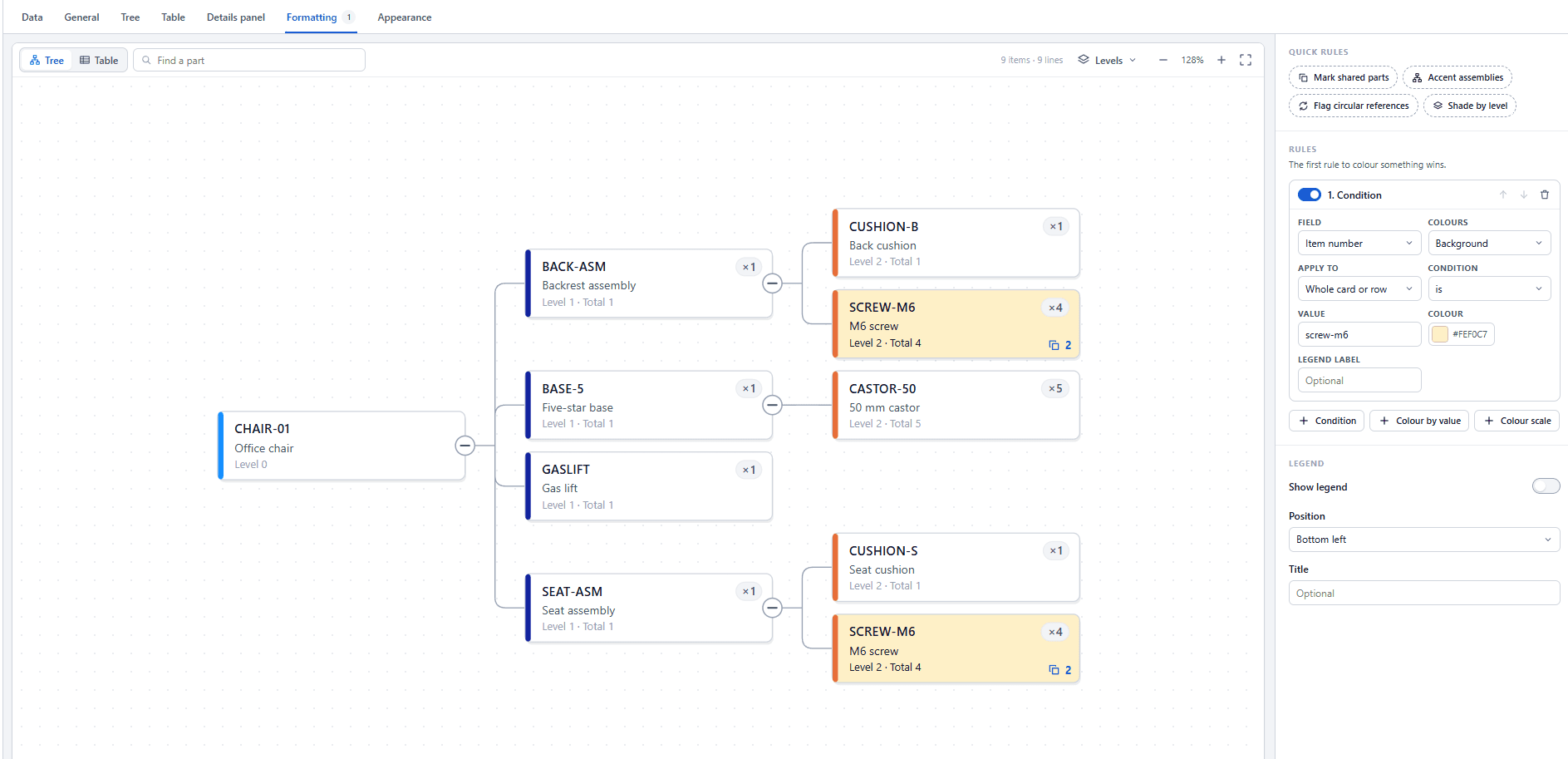
A new condition rule starts on your first text detail, or on Level when there is none, colouring the background in a pale yellow. A new colour by value rule colours the status dot, and a new colour scale shades the accent bar by level from light to dark blue.
Example: status dots by criticality
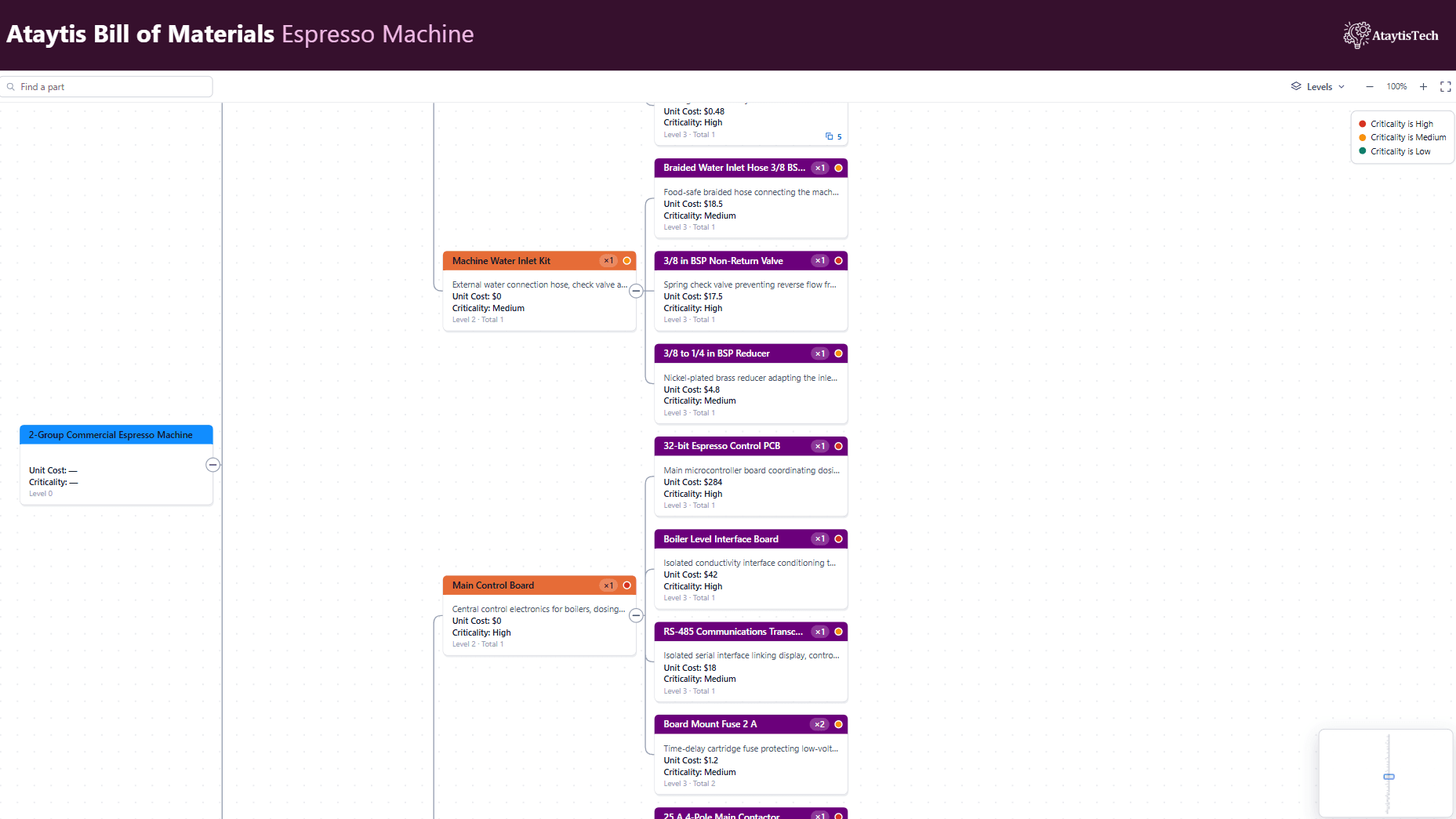
A Criticality column in Details holds High, Medium or Low for each part. Three condition rules put a coloured dot on every card and row, and the legend explains them:
Add a condition rule
Open the editor, select the Formatting tab, and under Rules select Condition.
Set it to High
Set Field to Criticality, Colours to Status dot, Apply to to Whole card or row, Condition to is and Value to High, and choose a red Colour.
Add Medium and Low
Add two more condition rules the same way, with Medium in orange and Low in green.
Show the legend
Under Legend, turn on Show legend and set Position to Top right. With Legend label left blank, each entry describes its rule, such as Criticality is High.
A Colour by value rule on Criticality does the same in one rule, with a theme colour for each value that you can change beside it. Condition rules are the better choice when only some values need a colour, or when the legend should use your own wording.
The parts of a rule
| Part | Options |
|---|---|
| Field | A built-in field, or a column from Description, Quantity, Sort order, Details or Tooltips. |
| Colours | Background, Accent bar, Text, Status dot. |
| Apply to | Whole card or row, or one table column. |
| Condition | is, is not, contains, does not contain, starts with, >, ≥, <, ≤, between, is blank, is not blank. For a yes-or-no built-in field, is or is not, with Yes or No. |
| Value | The value to compare with, or From and To for between. |
| Colour and Legend label | The colour, and optional wording for the legend. |
How values are compared
| The value is | Compared |
|---|---|
| Text | Without regard to case, so screw-m6 matches SCREW-M6. Greater than, less than and between follow alphabetical order, reading numbers inside the text as numbers, so BOLT-2 comes before BOLT-10. |
| A number | As a number, so 10 is greater than 9. |
| A date | As a date. Type the date to compare with, such as 2026-01-31. |
| Yes or no | A built-in field such as Is an assembly offers Yes and No. A true or false column also accepts true, yes or 1, and false, no or 0. |
| Blank | Matches only is blank. Every other condition is false for a blank value, including is not. |
Contains, does not contain and starts with always compare as text, also without regard to case.
Built-in fields
| Field | Value |
|---|---|
| Item number, Description | Text. |
| Level | The level of the position, 0 for a top-level product. |
| Quantity per, Extended quantity | The quantities of the position. |
| Occurrences | How many places the part is used. |
| Components | How many direct components it has. |
| Used by (parents) | How many parents use it. |
| Is an assembly | Yes when it has components. |
| Is shared by 2+ parents | Yes when more than one parent uses it. |
| Is a circular reference | Yes where a branch loops back on itself. |
Which rule wins
Rules are checked in order, and the first rule to colour something wins it. Put specific rules above general ones. Rules on different parts, such as a background rule and a status dot rule, can both apply to the same position. A rule on a column that has left the visual says so and does nothing until the column returns.
Legend
| Setting | Options | Default |
|---|---|---|
| Show legend | On or off | Off |
| Position | Top left, Top right, Bottom left, Bottom right | Bottom left |
| Title | Optional wording | Blank |
The legend is built from the rules, so it always matches the colours on the BOM. In Power BI's high contrast mode the host's colours replace the rules, and the legend is not shown.