
Formats, numbers and links
How Ataytis BOM shows numbers, currencies and dates with the formats set in Power BI, fixing long decimals, quantity decimal places, and making a column open as a link.
Formats are set in Power BI
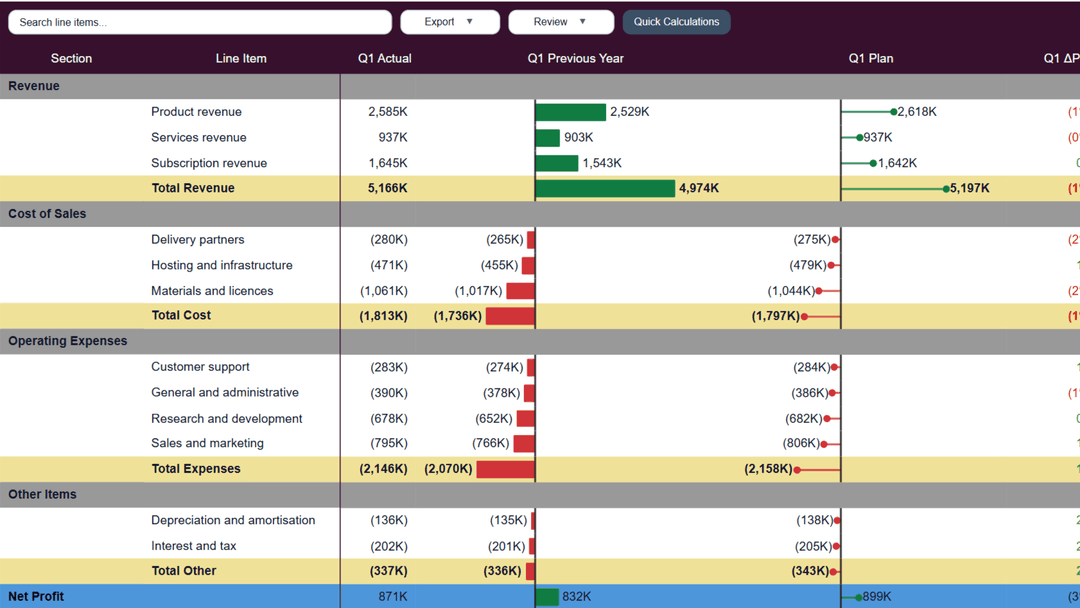
The visual shows each value with the format of its column or measure, through Power BI's own formatter, so a currency, a percentage or a long date reads the same as it does in any other visual. To change how a value appears, change its format in Power BI.
Select the column or measure
In the Data pane.
Set the format
On the Column tools ribbon, or Measure tools for a measure, choose the Format, such as Currency or a date format, and the number of decimal places beside it.
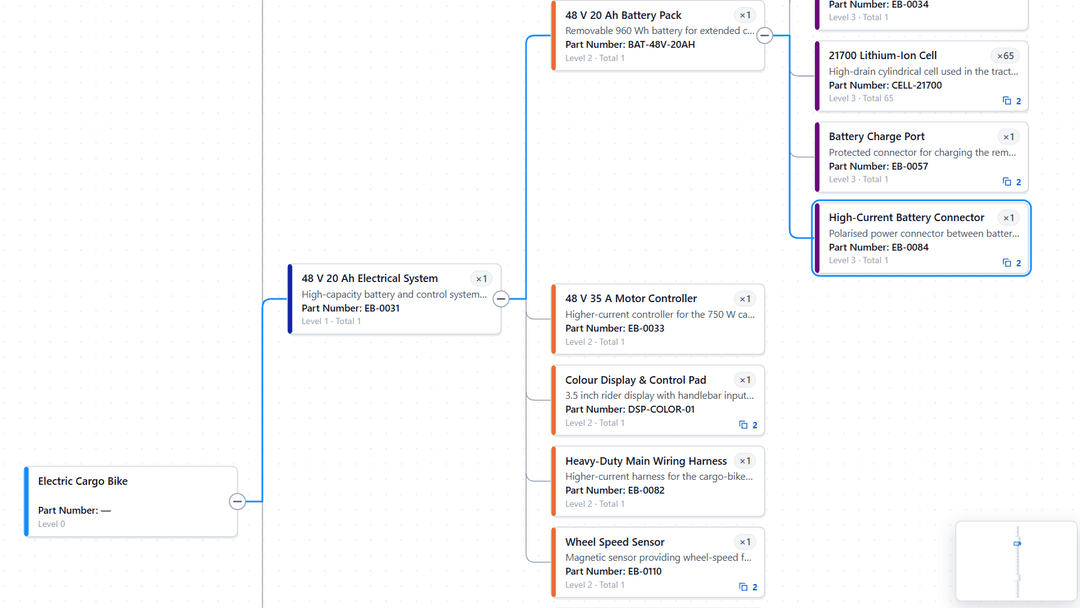
The table, the details panel, tooltips and tree cards all follow the change.
Quantities and extended quantities
Quantity per and extended quantity use the format of the Quantity column. Extended quantities are multiplied down each path, and fractions such as 0.05 kg multiplied by 12 can carry long decimals. To fix the decimal places for every quantity in the visual, set Appearance → Numbers → Quantity decimals in the editor to 0, 1, 2, 3 or 4. As in the model is the default.
Dates
A date column in Details or Tooltips, such as an effective date or a last change, is shown with its format in Power BI. Choose a format on the Column tools ribbon, such as 12 January 2026 or 12/01/2026.
Links to drawings and documents
Mark the column as a web address
Select the column of addresses in the Data pane. On the Column tools ribbon, set Data category to Web URL.
Add it to the visual
Drag it into Details or Tooltips.
In the details panel, each address beginning http:// or https:// becomes a link to the drawing, datasheet or record, and opens through Power BI.