


Does the native Power BI Matrix have a search bar?
Microsoft does not document a built-in search box in the native Matrix settings. You can still search using a separate slicer. A standard slicer helps you find and select a value; an Input slicer lets you type text to filter a column. If you want the search box inside the table, Ataytis Matrix includes it as an optional toolbar feature.
For a simple “type to filter” box beside your existing Matrix, start with the Input slicer. You do not need a custom visual for that.
Which kind of Matrix search do you need?
What should happen when someone searches?
Find a name in a long list, then select it
Standard slicer searchType part of a name → select a result → Matrix filters
Useful when you want to see the available choices.
Type a word to filter the Matrix
Native Input slicerType text → Enter / Apply → Matrix filters
Searches the column you add to the slicer.
Search inside the table and highlight matches
Ataytis Matrix searchType in the toolbar → matching rows and highlights
Requires Ataytis Matrix. Searches rows loaded into the visual.
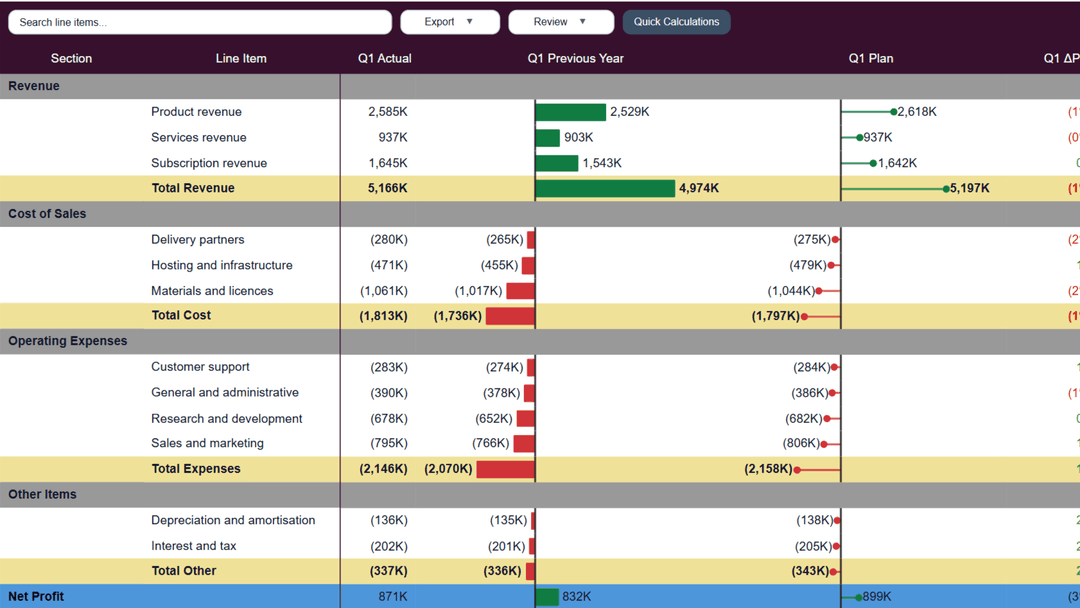
Reading the examples: Section is the group, such as Revenue; Line Item is a row within it, such as Product revenue. All three screenshots show Ataytis Matrix, our custom visual. The first two use Microsoft's native slicers above it. They are not screenshots of the native Matrix, although you can use the same slicer methods with that visual too.
Option 1: search a standard slicer, then select a value
A searchable slicer works well for a long list of customers, products or accounts. Type part of the name, find the right result, and select it.
- Add a standard Slicer and drag in the column you want to filter, such as Section.
- Use a Dropdown or Vertical list style. Open the slicer's ellipsis (…) menu and choose Search.
- Type part of a value, then select the matching item to filter the Matrix.
Microsoft documents these controls in Search in slicers. To reset the Matrix afterwards, clear the selected value too. Deleting the search text alone does not clear your selection.
Typing rev finds Revenue, but the Matrix has not changed
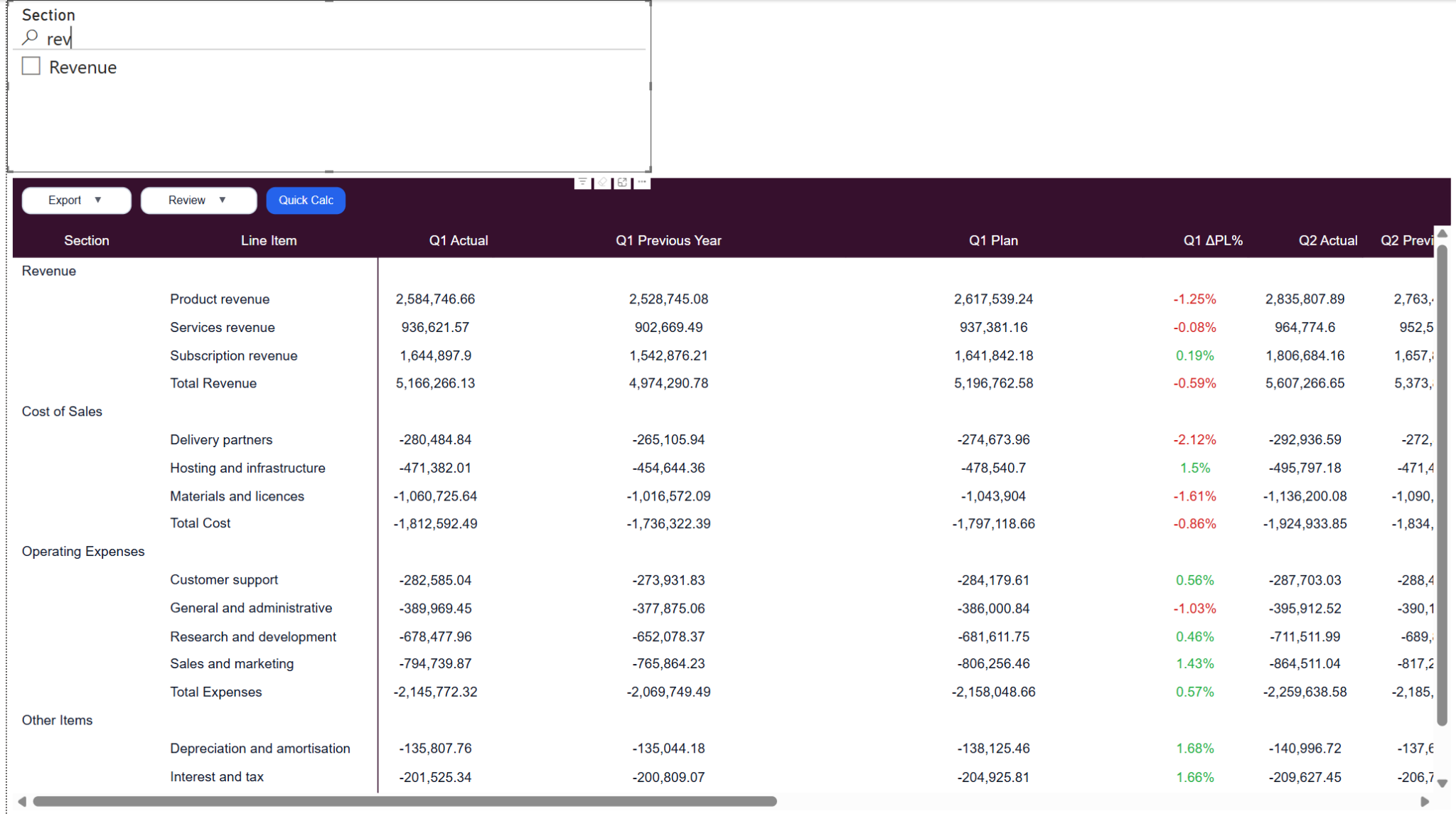
We also noticed that adding a second field to create a hierarchy removed the Search option in our setup. If that happens, check which slicer you are using. Microsoft's separate List slicer (preview) documentation describes hierarchy search, so the behavior we saw is not a limitation of every Power BI slicer.
Option 2: type to filter with the native Input slicer
Use an Input slicer when you want to enter a word and apply it without choosing from a list. We added Section to the slicer, entered revenue, and applied it. Only the Revenue section and its line items remained.
- Add an Input slicer beside the Matrix.
- Drag the column you want to search into the slicer, such as Section, Customer or Product Name. Without a column, it will not filter anything.
- Choose how the text should match. Use Contains any to find part of a name, or Is any for an exact match.
- Type your search and press Enter or select Apply. To clear it, use the × on the applied value.
Microsoft's Input slicer documentation covers the operators and setup. Older material calls it the Text slicer, its preview name; it is now generally available as Input slicer. With multiple terms, Contains any means at least one match, whereas Contains all requires every term.
Applying revenue leaves just the Revenue section
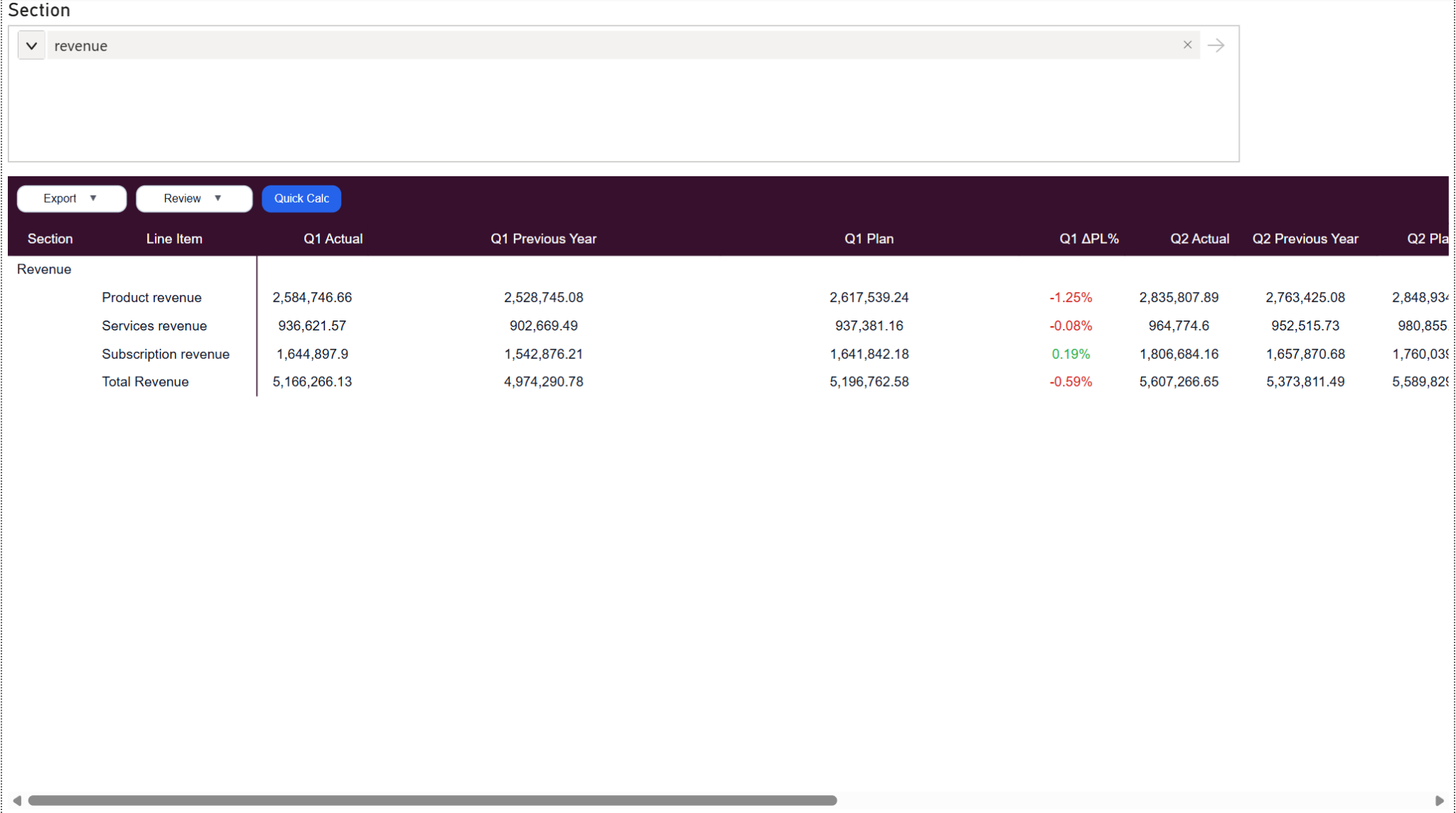
It only searches the column you give it. Here, typing Product would not find Product revenue: that name is in Line Item, while the slicer searches Section. Add Line Item instead if that is what readers need to find, or combine several columns for searching.
Make it filter only the Matrix
Our Input slicer also filtered other visuals on the page. If you do not want that, select the slicer, open Format → Edit interactions, leave Filter enabled for the Matrix, and choose None on the charts you want to leave alone. See Microsoft's Edit interactions instructions.
The totals changed with the filter in our test too. Check yours before publishing, especially for percentages, averages or DAX measures that ignore filters. A total is not always the sum of the rows you can see.
Option 3: put the search bar inside Ataytis Matrix
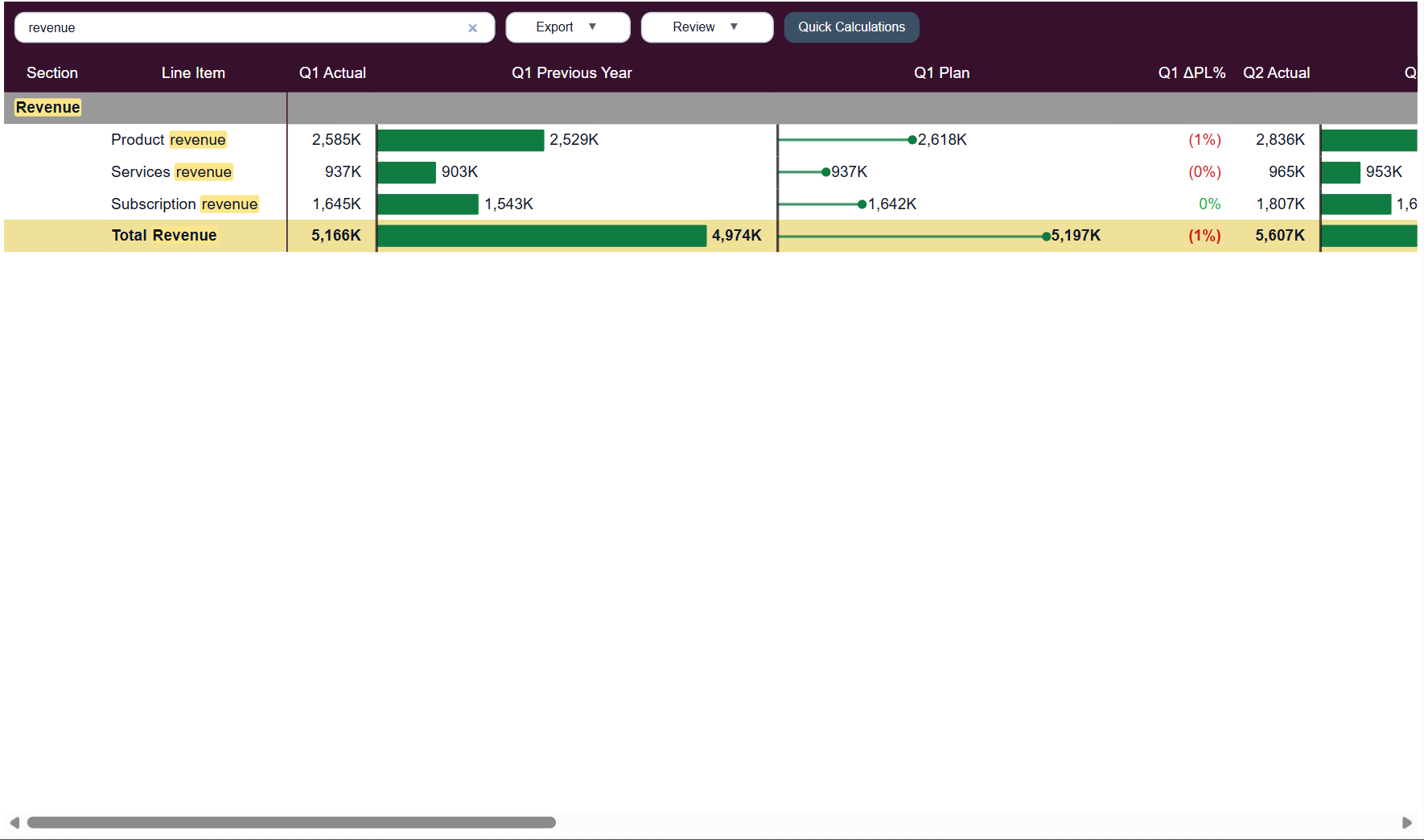
If readers spend most of their time in the table, putting search there saves them moving between a slicer and the results. Ataytis Matrix has an optional toolbar search. We typed revenue and the visual showed matching rows, with the matching words highlighted in yellow.
Search inside the Matrix, with matching words highlighted
- With Ataytis Matrix selected, open the Format pane's Toolbar card and enable search.
- Set the prompt shown in the empty search box and enable the clear button. Turn on Show search target selector if readers should choose which field to search.
- Check Search up to rows, then test a known match and clear the search to confirm the full view returns.
The row-search documentation covers these controls and styling. Search up to rows = 0 searches everything currently loaded. That means the rows available to this visual, not every record in your Power BI model. If you set a row limit or choose a particular field, the search is narrower still.
You would be using Ataytis Matrix in place of the native Matrix, not adding a search box to Microsoft's visual. Check that your organization allows it and review the installation and licensing requirements. Before publishing, check what happens to your totals and other visuals when you search; do not assume the result will be identical to using a slicer. If you only need a text filter beside the table, the native Input slicer is enough.
Can one native search box cover multiple fields?
Suppose readers might know a product's name, its SKU (product code), or its category. You can join those values into one column and give that column to the Input slicer. For a Products table, the calculated column could look like this:
SearchText =
COALESCE('Products'[Product Name], "") & " | " &
COALESCE('Products'[SKU], "") & " | " &
COALESCE('Products'[Category], "")
Create it with New column, not New measure, adapting the table and field names. COALESCE replaces blank values with empty text. Add SearchText to the Input slicer and choose Contains any. If the Matrix uses data from another table, check that the model relationships let Products filter that table.
This is a separate example, not the data used in our screenshots. You need permission to edit the model; an Import table will also store the extra text. Check your storage mode's calculated-column support. The search will cover the columns you joined, not calculated results such as sales totals or margins. There is no need to add this helper column if searching one existing column is enough.
Why is Matrix search not giving the expected result?
- The list changed, but the Matrix did not.
- In a standard slicer, select the matching value after typing. If it is already selected, check visual interactions and the relationship between the slicer field and the Matrix data.
- Typed text produces no rows.
- Check which column the slicer searches and whether it expects an exact match or part of a value. Other slicers, page filters or report filters may already have excluded the rows you want.
- Search filters unrelated charts.
- Select the slicer and use Edit interactions to turn its effect off for those visuals. Keep Filter enabled for the intended Matrix.
- An Ataytis Matrix row cannot be found.
- Check which field is selected for search and whether Search up to rows limits the rows checked. Clear other report filters if they are excluding the row you need. Search cannot find rows that the visual has not loaded.
For help with the layout of your totals, see our guide to keeping the grand total without row subtotals. If columns are missing even before you search, our 100-column limit test and workarounds explains the native Matrix's separate width limit.
To rank the products you find, our Matrix row-sorting guide compares sorting by Total with sorting by an individual month.