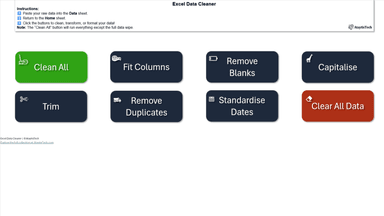

What is the Excel Data Cleaner?
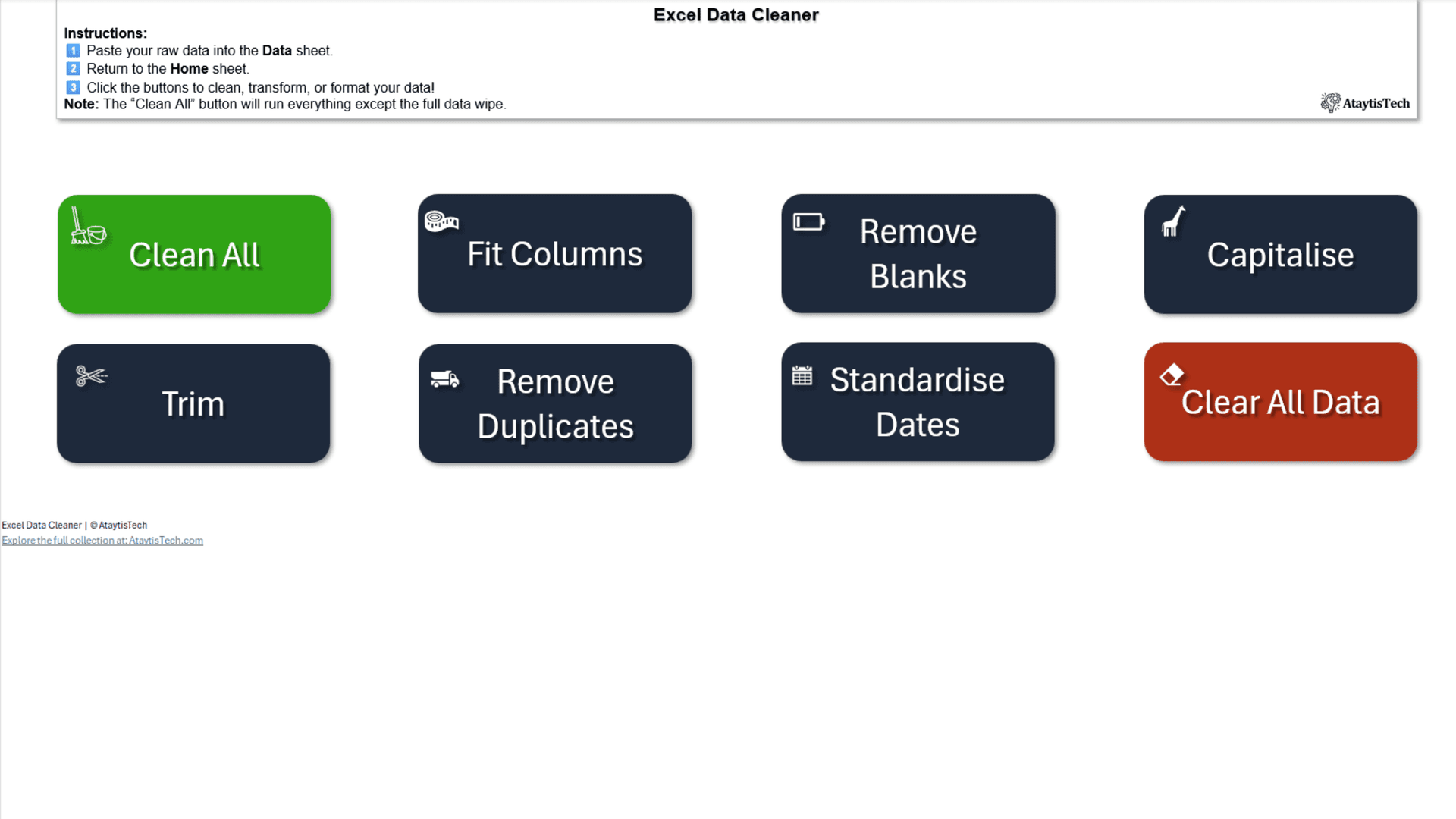
The Excel Data Cleaner is a macro-enabled Excel workbook that handles the most common data quality problems in one click. Trim spaces, remove duplicates, standardise dates, fix capitalisation, remove blank rows, and auto-fit columns — all without writing a single formula.
You paste your raw data into the Data sheet, switch to the Home sheet, and click Clean All. Eight macros run in sequence and hand you back a consistent, analysis-ready dataset. Each macro can also be run individually if you only need to fix one specific thing.
- Trim leading, trailing, and excess internal spaces
- Remove duplicate rows automatically
- Standardise all dates to UK or US format
- Fix inconsistent text capitalisation across entire sheets
- Remove blank rows and empty cells
- Auto-fit all column widths instantly
- Clear imported data with one click to start fresh
- Works on datasets of any size — no row limit
What You'll Need
The Excel Data Cleaner works on any modern version of Excel:
Excel 2016 or later
Windows or Mac — both supported
Macros enabled
Required for the buttons to work — covered in the next section
Enabling Macros
All the cleanup buttons in this workbook are powered by VBA macros. Excel blocks macros by default as a security measure, so you'll need to enable them when you first open the file. This is a one-time step for this workbook.
- 1Open the downloaded .xlsm file. Excel will show a yellow security bar at the top of the screen.
- 2Click Enable Content in that bar. If the bar doesn't appear, go to File → Info and click Enable Content there.
- 3On Mac: you may see a dialog asking whether to enable macros — click Enable Macros.
- 4The workbook is now fully active. All buttons on the Home sheet will work immediately.
Watch: See it in Action
The video below shows the full workflow — pasting raw data, running a full cleanup, and using individual buttons to target specific problems. The whole process takes seconds regardless of how large your dataset is.
Full Excel Data Cleaner walkthrough — from raw data to clean dataset
Cleaning Your Data
The standard workflow takes three steps:
- 1Open the workbook from the product page and paste your data into the Data sheet. You can paste from any source — another Excel file, a CSV, a database export, or copied rows from a web page. The data can be in any format; the cleaner doesn't require a specific layout.
- 2Switch to the Home sheet. This is where all the cleanup buttons live.
- 3Click Clean All. Eight macros run in sequence — trim, capitalisation, date standardisation, blank removal, duplicate removal, column auto-fit, and more. The data sheet updates in place.
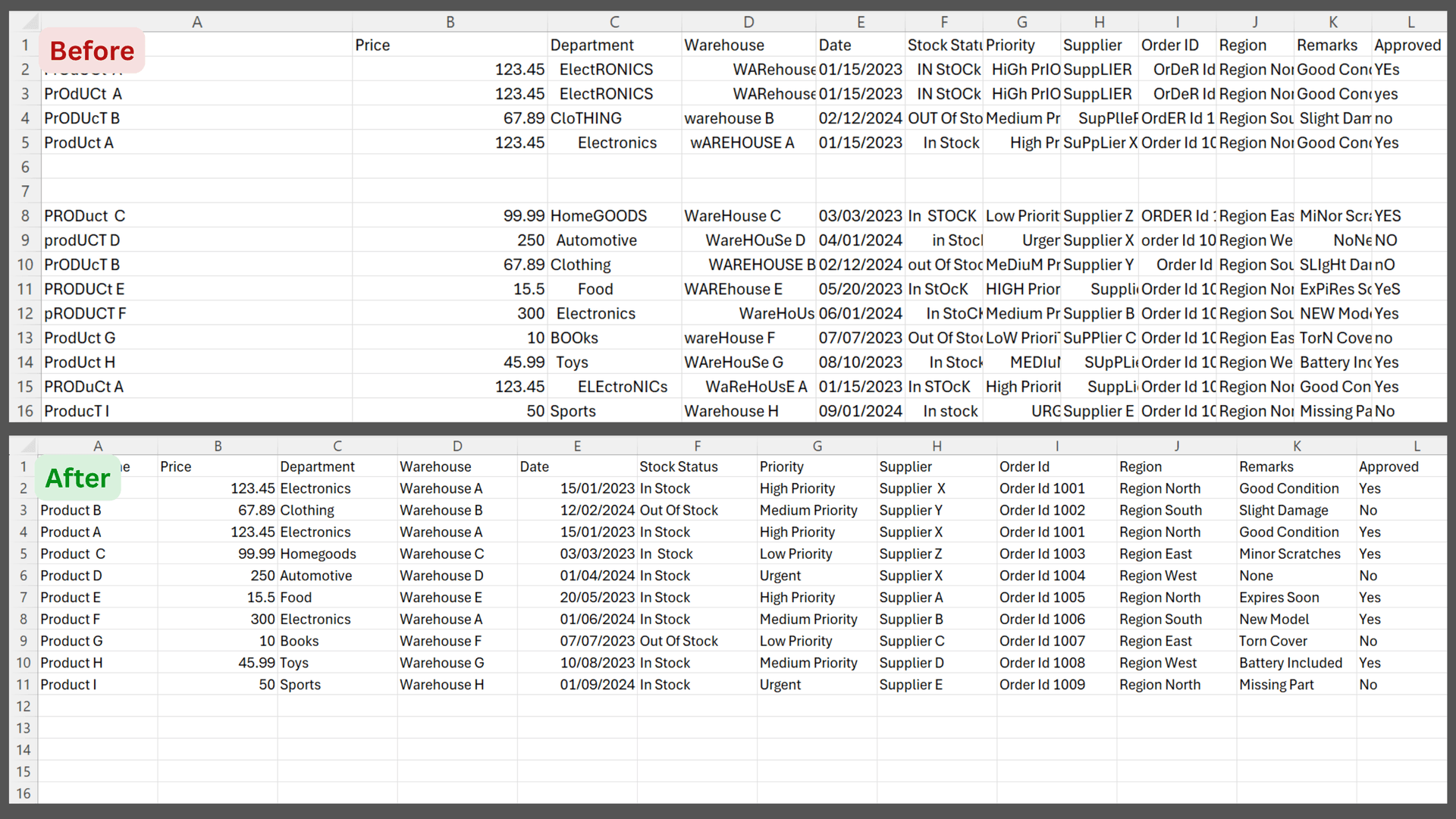
Raw imported data before and after running Clean All — spaces, duplicates, and inconsistent formatting resolved instantly
Individual Cleanup Steps
You don't have to run everything at once. Every macro is also available as its own button on the Home sheet, so you can target exactly the problem you need to fix.
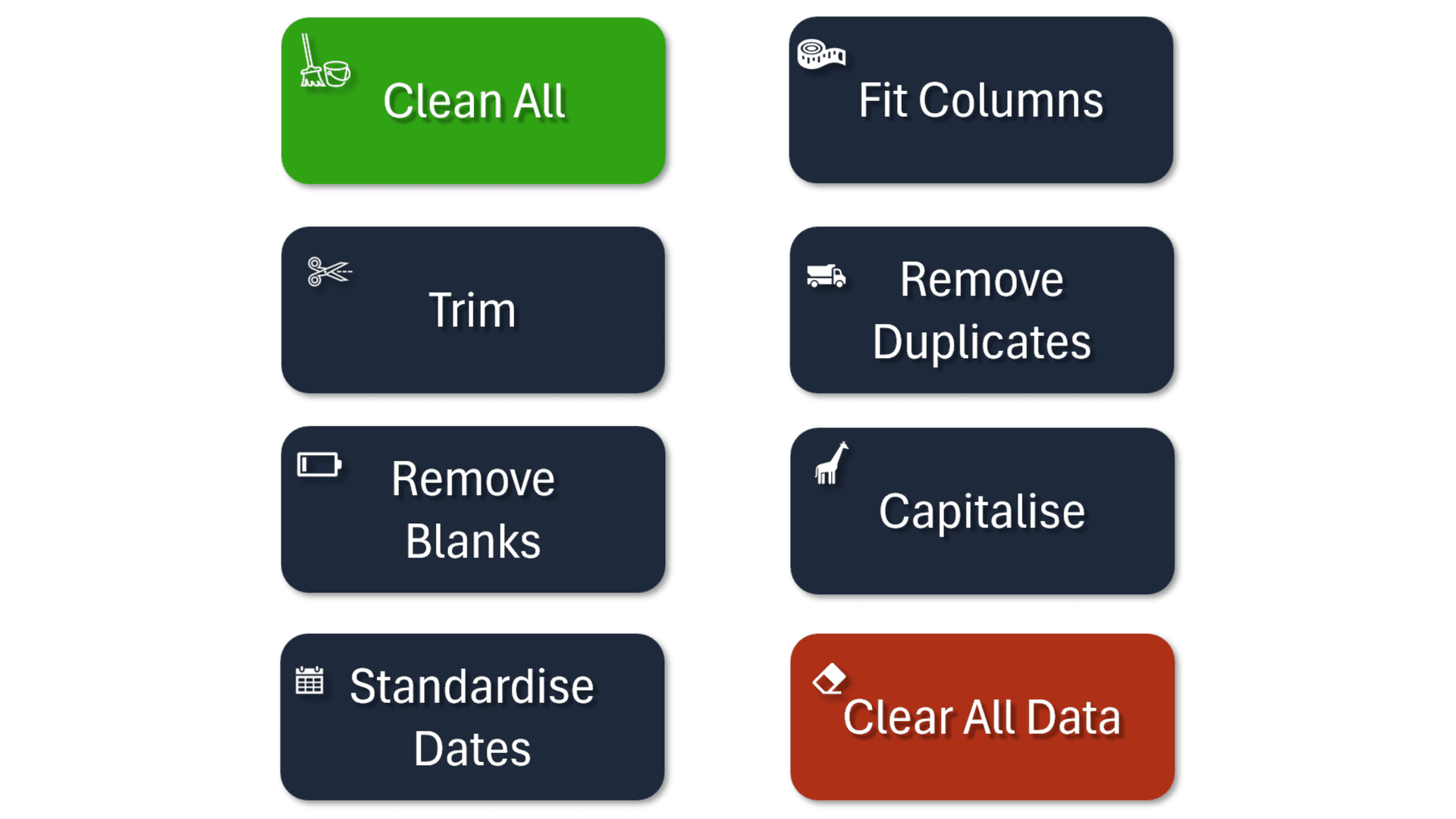
Trim Spaces
Removes leading, trailing, and extra internal spaces from every cell in the dataset.
Remove Duplicates
Scans all rows and deletes exact duplicates, keeping the first occurrence.
Standardise Dates
Converts all valid dates to your chosen format — UK (DD/MM/YYYY) or US (MM/DD/YYYY).
Fix Capitalisation
Normalises text case across entire columns — choose Title Case, UPPER, or lower.
Remove Blanks
Deletes empty rows and cells, tightening up the dataset.
AutoFit Columns
Resizes every column to its optimal width — no dragging required.
Clean All
Runs all eight macros in sequence with one click.
Clear Data
Wipes the Data sheet so you can paste a fresh dataset without manual deletion.
Date Formatting
Mixed date formats are one of the most common problems in imported data — some rows in DD/MM/YYYY, others in MM/DD/YYYY, some written as text strings. The Standardise Dates button converts every valid date in your sheet to a single consistent format.
Before running the macro, choose your preferred format on the Home sheet: UK (DD/MM/YYYY) or US (MM/DD/YYYY). The macro reads your selection and reformats every date column accordingly.
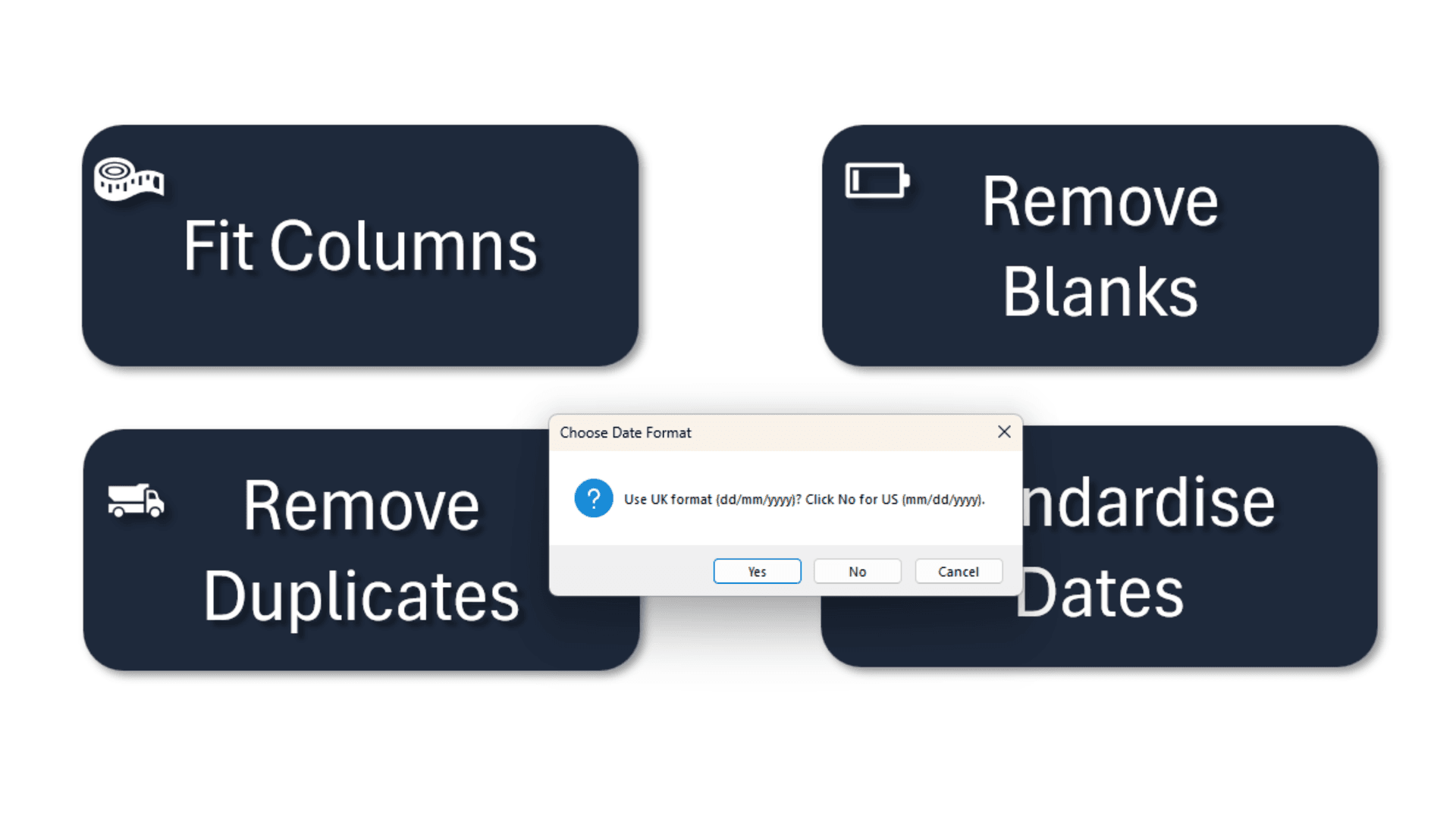
Select UK or US date format before running Standardise Dates
Ready to clean your data?
Download the workbook and the step-by-step PDF guide — clean any dataset in seconds, no formulas required.
One-time purchase · Instant download · Includes PDF guide